How to Draft a Document in Chat
Last updated: November 4, 2026
Overview
Ask Eve in chat to draft a document, and Eve writes it from the case file and opens it as a formatted Word document preview. This article covers drafting from start to download.
Steps
Open the matter. Open the matter you want to draft for. You can use matter chat or the Talk to Eve panel.
Pick your template (optional). To use a specific letterhead or template, click Library under the chat box. Select the Central Library folder or file that holds it. Do this before you ask for the draft.
Ask Eve to draft. Type what you need in plain language. For example:
"Draft a demand letter for this matter."
"Draft a complaint for damages for this case on our pleading paper."
"Draft a letter to the client with an update on their case."
"Draft a medical records request to [provider]."
Review the draft. Eve opens the draft as a Word document preview. Read it the way you would read a draft from a new associate. Check the facts against the case file before it leaves your firm.
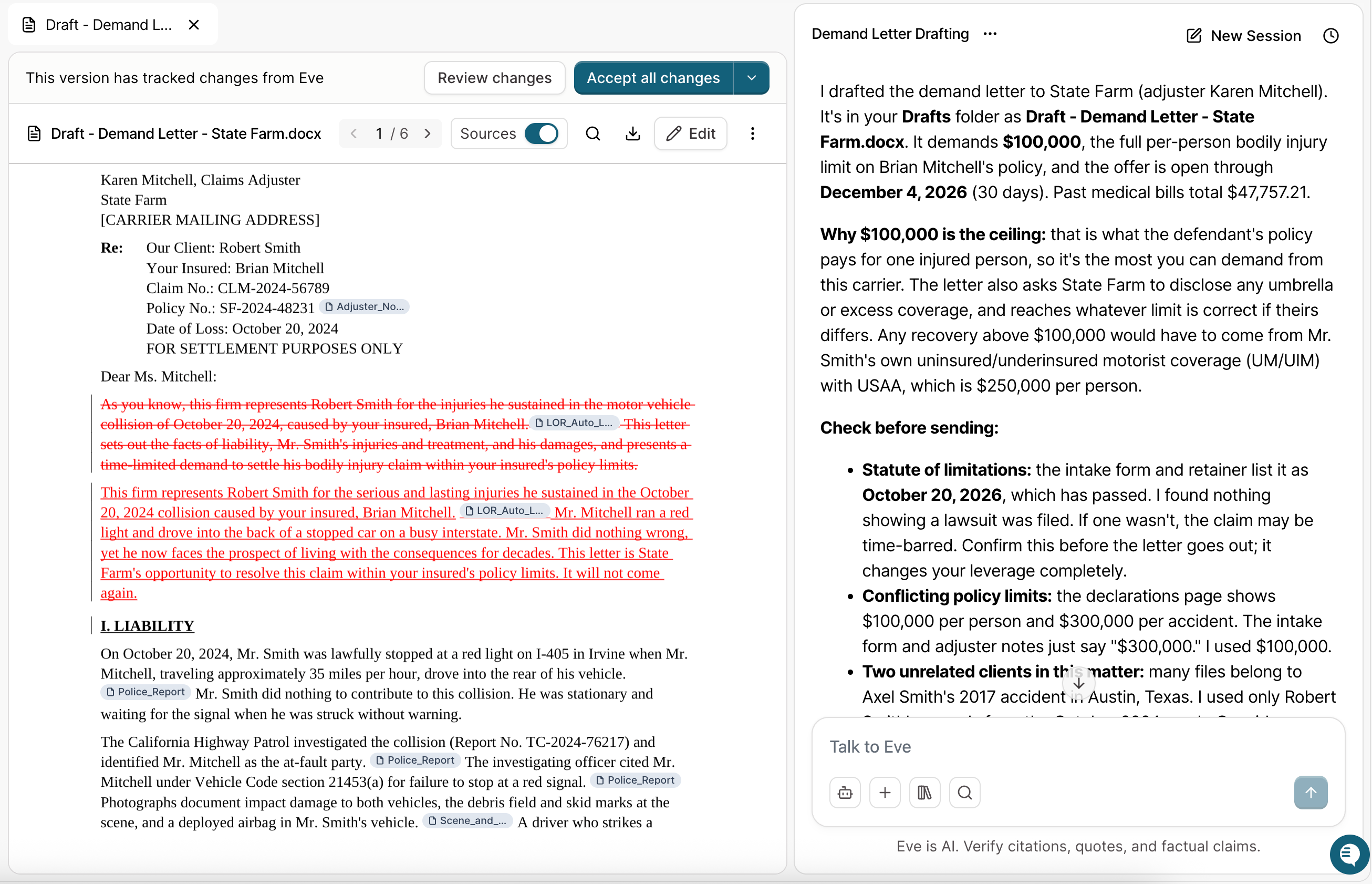
Revise it. Highlight the text you want to change and click Ask Eve, ask for changes in chat, or click Edit and type the change yourself. See 📄 How to Revise a Draft in Chat
Accept or reject the changes. Eve shows its edits as tracked changes. See 📄 How to Review Eve's Changes and Restore Earlier Versions
Download. When the document is ready, click Download and choose Word with sources or Word without sources. The file matches the preview.
Tips for Better Drafts
Name the document and the recipient. "Draft a records request to St. Mary's for all records from January to March" gives Eve more to work with than "Draft a records request."
Tell Eve which template to use. If the firm has more than one letterhead or template for a document type, select the one you want in Library before you ask.
Check before you send. Eve drafts from the case file. Verify key facts, dates, and amounts before a document leaves your firm. See How to Verify Eve's Responses.
Match the request to what you need. Complaints, motions, demand letters, discovery responses, and formal letters come back as Word documents. Emails and short inserts stay in chat.
Troubleshooting
Eve answered in chat instead of creating a Word document.
Ask: "Put this in a Word document." Eve makes a Word document by default for complaints, motions, demand letters, discovery responses, and formal letters. Emails and short inserts stay in chat.
Eve asked for my letterhead.
Click Library under the chat box and select the letterhead file. The file must be in Central Library.
Eve does not know which draft I mean.
Eve knows the draft when it is open next to the chat. If it is not open, name the draft in your message.