How to Review Eve's Changes and Restore Earlier Versions
Last updated: November 4, 2026
Overview
Eve shows every edit to a draft as a tracked change, and saves a new version each time the draft changes. This article covers accepting, reviewing, and rejecting changes, and going back to an earlier version.
Accept All Changes
Click Accept all changes above the draft to keep every change.
Review Changes One at a Time
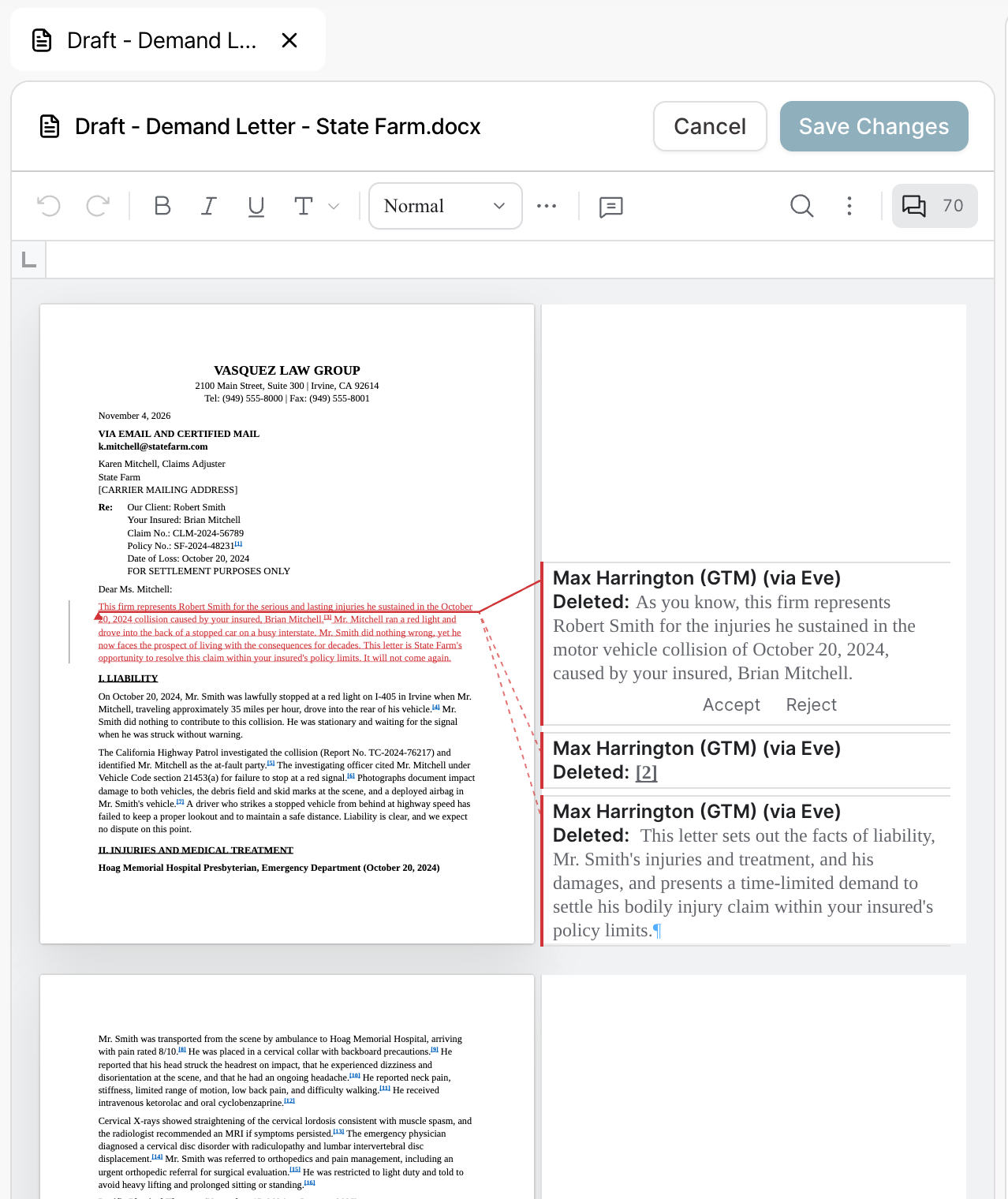
Click Review changes. Eve opens the draft in the editor at the first change with redlined versions.
Click Accept or Reject on each change.
Click Save Changes.
Tracked changes also come with the downloaded Word file, so they can be reviewed in Word.
Reject All Changes
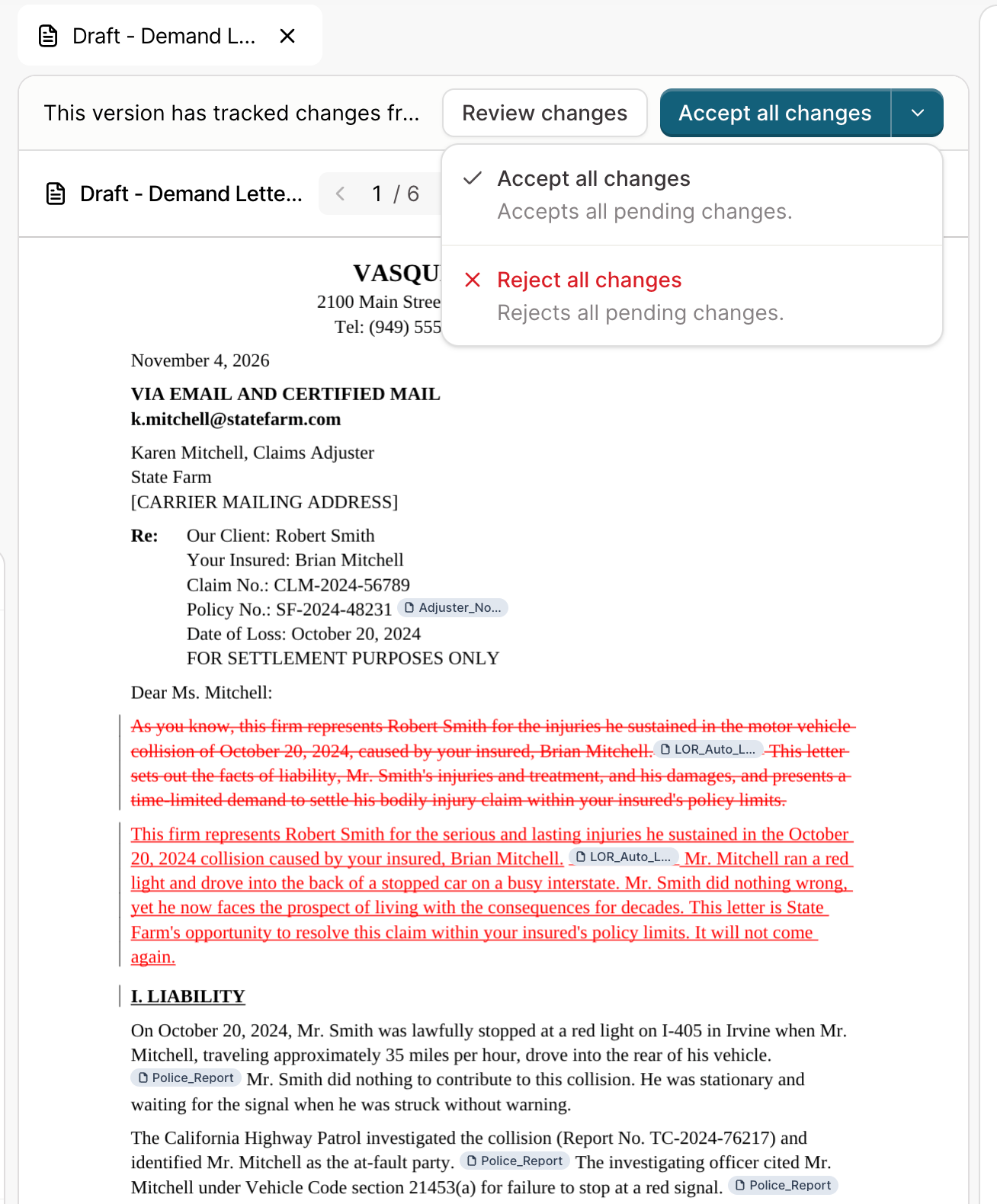
Click the arrow next to Accept all changes.
Click Reject all changes.
To reject only some changes, use Review changes instead.
Get a Clean Copy
Click Accept all changes, or ask Eve for a clean copy. Eve always shows its edits as tracked changes first.
Whose Name Shows on Tracked Changes
Eve's tracked changes show your name with "(via Eve)", for example "Jane Smith (via Eve)". The name stays in the downloaded Word file. To show a different name, ask Eve. For example: "Show the changes under Michelle's name."
Restore an Earlier Version
Open the draft.
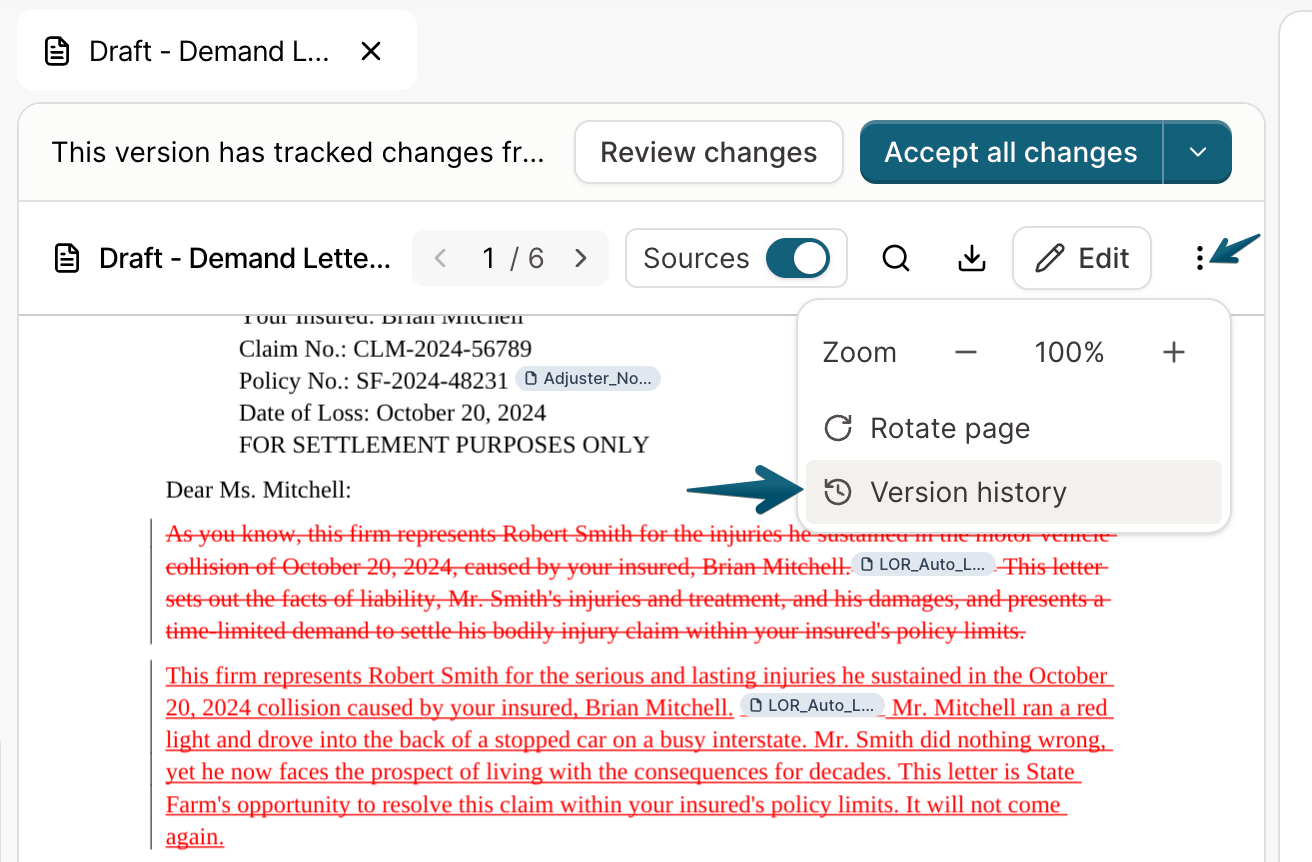
Click the ⋯ menu in the document header.
Click Version history.
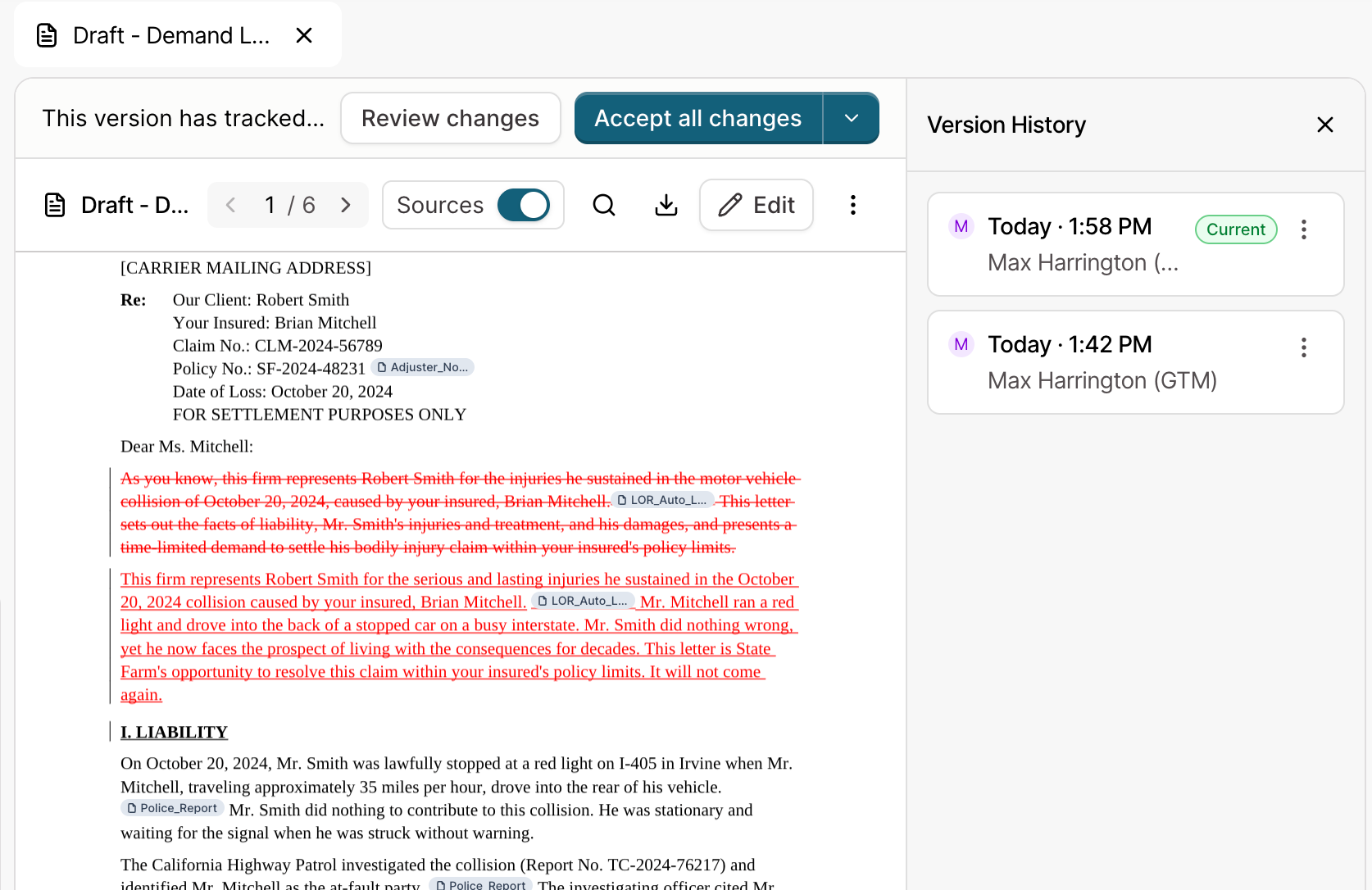
Select the earlier version and click [restore button label].
A manual edit appears in the list as its own version.
Troubleshooting
Eve did not track a header or margin change.
Eve does not track changes to headers, footers, or page setup, such as margins. Eve tells you when an edit is not tracked. To undo one of those changes, restore an earlier version from Version history.
I do not like Eve's changes.
Click Reject all changes, or click Review changes to reject only some. To go back further, open Version history.