Leads and Lead Scoring in Eve
Last updated: September 20, 2026
Overview
A lead is a prospective client who hasn't signed yet. Leads live in their own workspace in Eve, separate from matters, with their own list, their own tools, and several areas built specifically for intake.
Everything needed to evaluate a prospective client sits on the lead: the calls and their transcripts, a structured intake form, any documents you've uploaded, and a lead overview carrying a score with the reasoning behind it. When a client signs, the lead converts to a matter and all of it carries across.
What Lives in a Lead
A lead has most of what a matter has, including Talk to Eve, every manual agent, document upload, files and activity, plus a few tools specific to intake.
The lead overview. The centralized read on the lead: a summary of the case, the lead score, the call score, and the client's basic information in one place. It generates automatically the first time a call lands on the lead. When new information comes in, whether that's a follow-up call, a police report or the client's MRI, click Regenerate to rebuild it against everything the lead now holds.
The lead score. Eve's 0 to 100 read on how worth pursuing the case is, with a written rationale. Covered in full below.
The intake form. The structured version of what came out of the call, with the facts laid out in fields rather than buried in a transcript. Sections appear conditionally based on the case type, so a slip and fall surfaces the questions that matter for premises liability and doesn't ask about policy limits on a vehicle nobody was driving.
Calls. Every call attached to the lead, with the transcript and the analysis of each one. This is where to check a score against what the caller actually said.
You can upload documents to a lead before there's ever a matter: the incident report, photos of the hazard, the first set of medical records. They're included in the lead overview analysis, so the evaluation runs on the whole file rather than just the call. Same file size limits and supported file types as matters; there's nothing more restrictive about a lead.
What Waits for the Matter
Three things are matter-only:
Document drafting: blueprints, demand letters, discovery responses
Medical Overview and medical chronologies
Auto agents: the ones that fire on a trigger rather than when you run them
Everything else is available in a lead today.
Nothing is lost by waiting. Every document, call, session, and the lead overview itself carry into the matter on conversion, so the moment a lead signs, those tools open up with the complete file already sitting there.
How Lead Scoring Works
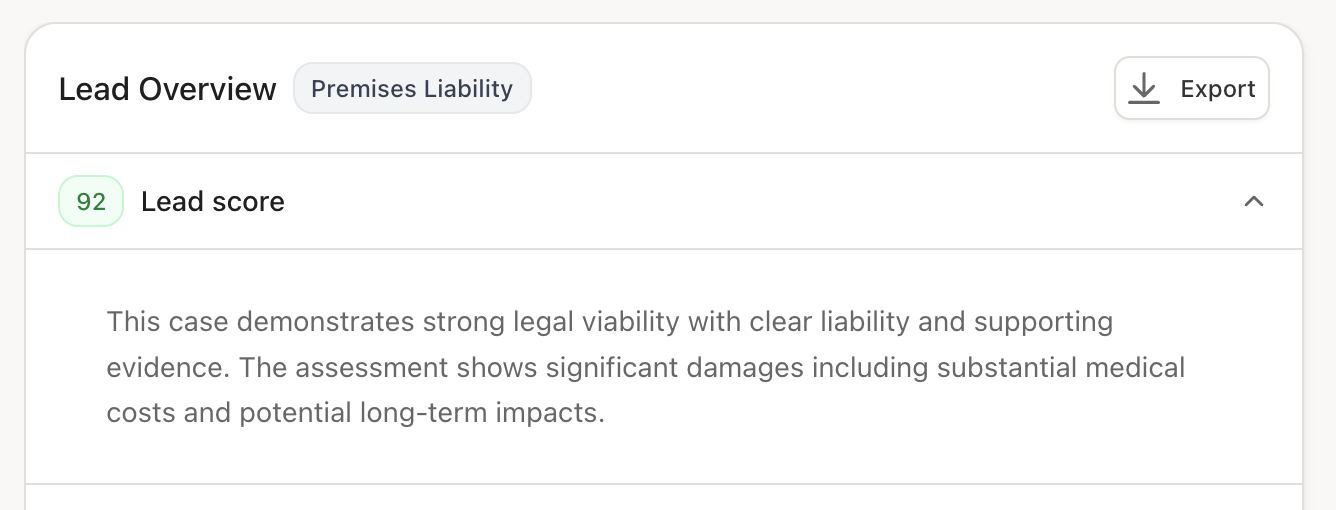
Lead scoring runs on everything Eve has: the call transcript, the intake form, any documents on the lead, and whatever came in from the web form or referral partner that created it.
Two numbers come out, and they're different things:
The score: 0 to 100. A higher score means that this call better fits your firm's criteria. Typically, cases with a score of 50 or over lead score fit your qualifications, and cases with a score of 49 or below do not.
The rationale: a written explanation from Eve naming the facts that moved the score.
Use the score to decide who to call first, and the rationale to decide what to ask about when they pick up.
Scoring reruns whenever the lead changes. A lead that came in at 41 because nobody established fault can move well above the line once the traffic citation shows up.
Lead Score vs. Call Score
Lead score is about the case. Liability, injury, damages, documentation, time left on the statute.
Call score is about the call. How the intake specialist handled it: professionalism, completeness, whether they got what they needed. It only runs on calls classified as intake calls, and it's visible to firm admins and intake managers rather than the whole team, so managers can review intake performance without every specialist seeing each other's numbers.
Two different questions, scored separately, with criteria you edit independently.
Where Scores Show Up
The Leads page: sort and filter by score.
The lead overview: the score with its full justification.
Lead Rescue: Eve flags high-scoring leads that have been called but haven't signed, with the reasoning for the flag. These are typically strong cases that are shopping around or were handled badly on the first call. They appear under the Lead Recovery tab on the Leads page.
New lead emails: for leads that come in through your voice agent, the notification carries the score, the rationale, the caller's phone number, and a link to the lead.
Your lead or case management system: score and rationale can flow out to Clio Grow, LeadDocket, or SmartAdvocate through Eve's API.
To set who receives new lead emails:
Go to Settings → Intake.
Under Voice AI Notifications, find the three notification fields: New Lead, Case Calls, and Other.
Enter the recipients for each. Each field accepts up to five addresses, separated by commas.
Each recipient gets their own individual email rather than one shared thread.
Reviewing a Lead Score You Disagree With
Open the lead and read the rationale before deciding the score is wrong. Three of the most common errors in scoring are:
The lead is genuinely missing information: the call ended before anyone established coverage, so Eve scored what it had.
The criteria say something you didn't intend, and the score is a fair reading of a rule that needs rewriting.
The criteria are silent on a factor your firm cares about, and it needs adding.
If you're overriding the same kind of score more than once or twice a week, consider changing the criteria rather than the lead. For more information on updating scoring criteria, see 📄 How to Edit Eve's Lead Scoring Criteria.
Scoring criteria don't change what your voice agent asks on a call. Lead scoring, call scoring, and the intake form all run after the call ends. They evaluate and store what was said, but none of them write the script. If you want Eve to start asking callers about their UM coverage, that goes into the voice agent's questions. Changing what gets asked and changing how the answers get graded are two separate settings.
Signing, Converting, and Turning a Lead Down
When a client signs, the lead becomes a matter:
Open the lead.
Select Convert to Matter.
Choose New matter if the matter doesn't exist in Eve yet. Fill out the matter's name and the assigned team on the matter.
Choose Existing matter if you've already created a matter(or are connected with a case management system and have already created the matter), then search the name of the matter. Select the existing matter's title.
Confirm by clicking Create Matter / Add to Matter.
Sessions, files, calls, and the lead overview are all available in the matter afterward, and the matter-only tools open up against that full file immediately.
If your firm has Voice AI Signing turned on, a lead your voice agent signs during a live call converts on its own. The signed retainer is stored on the lead, the status flips to signed, and you can choose to convert the lead to a matter.
Key Terms
Lead: A prospective client who hasn't signed yet, living in Eve's Leads workspace rather than in matters.
Lead overview: The centralized read on a lead, covering case summary, lead score, call score, and client details in one place.
Lead score: Eve's 0 to 100 read on how worth pursuing a lead is. 50 and above is qualified.
Call score: A separate score rating how the intake call was handled, visible to firm admins and intake managers.
Scoring rationale: The written explanation of which facts drove the score.
Scoring criteria: The guidelines Eve scores against, editable in Settings → Intake.
Intake form: The structured version of the lead's facts, with sections that appear based on case type.
Regenerate: The control on the lead overview that re-scores a single lead against your current criteria.
Lead Rescue: Eve's flag on high-scoring leads that have been called but not signed.
Matter: An active, signed case.