Global Notifications in Eve
Last updated: September 30, 2026
Overview
Notifications tell you when a long-running task finishes or fails, wherever you are in Eve.
They arrive two ways: as a toast that appears briefly, and as an entry in the notification panel that stays until read. Both carry the same information, so nothing is lost by missing the toast.
The Notification Panel
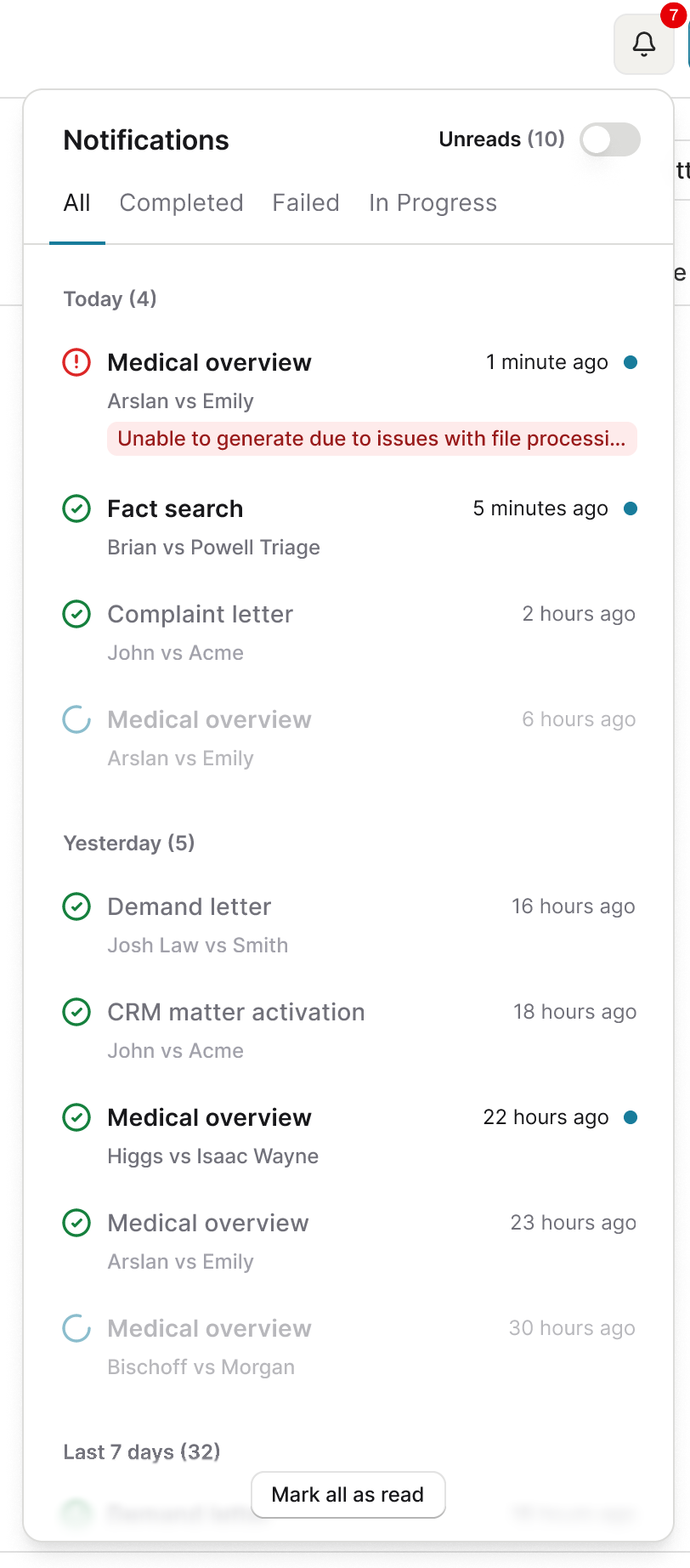
The panel is the full log, opened from the bell icon in the header. It shows notifications from every matter, whether you are on the all matters page or inside one case. The red badge on the bell counts unread items.
Inside the panel, notifications group by time: Today, Yesterday, Last 7 days, Older. They can be filtered to unread or read.
Each entry shows the task name, the matter name, the completion or failure time, and the current status.

Toast Notifications
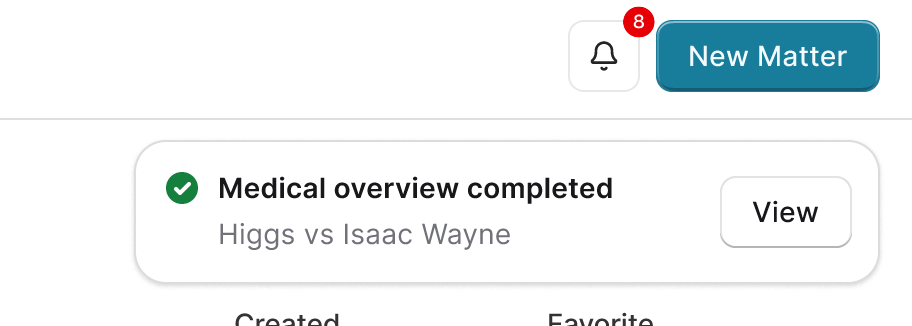
A toast is a short pop-up below the bell when a task completes or fails. It carries the same content as the panel entry and stays for 6 seconds.
View goes straight to the task. Letting it dismiss loses nothing: an unread entry is added to the panel either way.
Toasts appear anywhere in Eve and stack when several tasks finish together.
Reading the Status
Status | Shown as | What it means |
|---|---|---|
Completed | Green checkmark | The task finished. There is output to review. |
Failed | Red alert icon | The task could not complete. A short message explains why. |
In progress | Loading spinner | Still running. Greyed out in the panel, because there is nothing to open yet. |
An unread notification shows bolder text and a blue dot beside the time. A read one is grey with no dot.
What Notifications Do Not Do
They are yours alone. Notifications are user-level, so marking one read does not change anything for a colleague, and nobody sees that you actioned it.
They do not cover everything an agent did. Work that ran without your involvement appears in activity rather than as a notification. See 📄 Agent Activity, Notifications, and Output.
A missed toast is not a missed notification. The panel entry persists.
Key Terms
Notification panel: The full log behind the bell icon, grouped by time and filterable by read state.
Toast notification: The 6-second pop-up when a task completes or fails.
Task status: Completed, failed, or in progress, each with its own icon.