Home page
Last updated: September 30, 2026
Overview
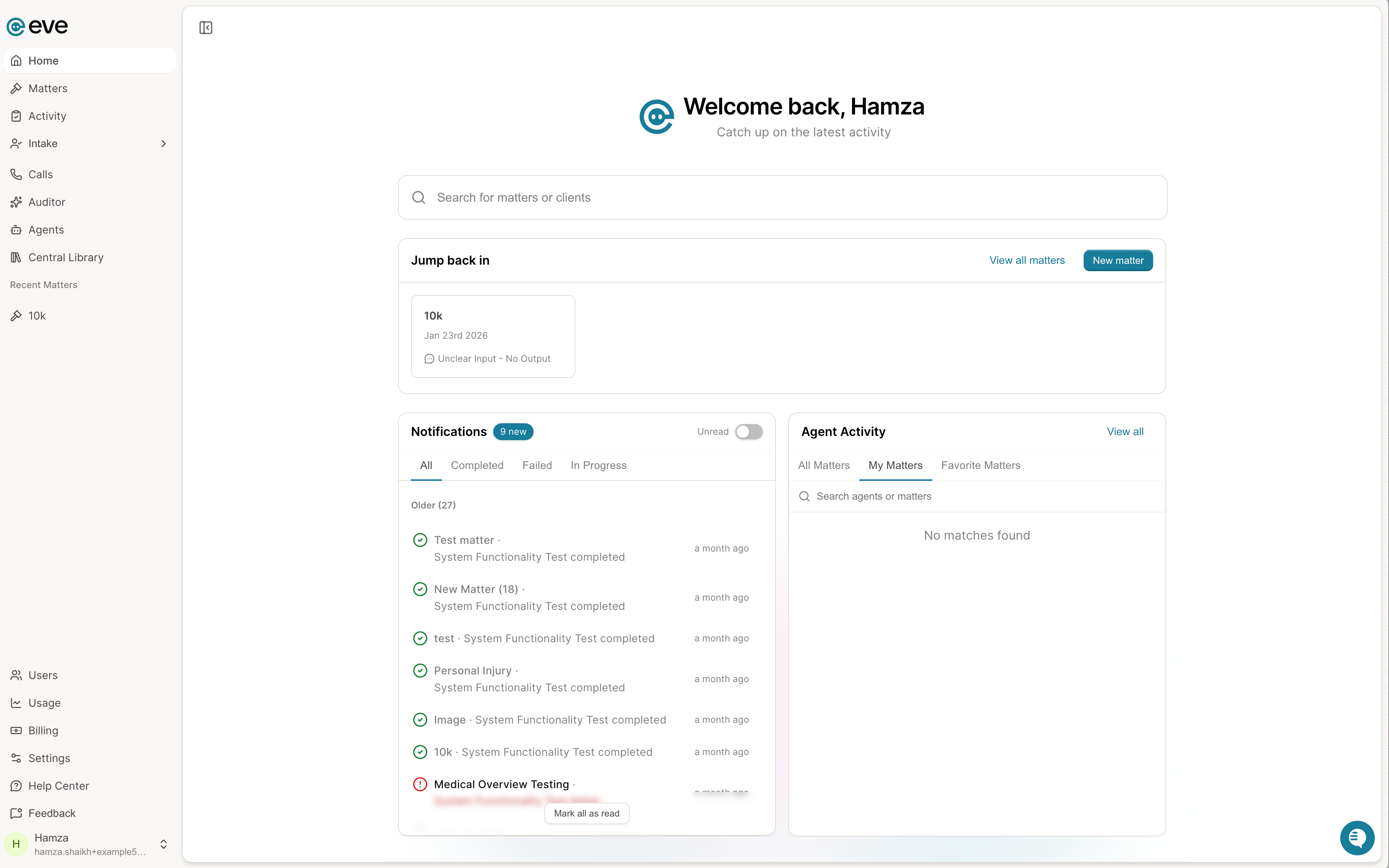
The Home page is the Home tab in the sidebar, and where you land on signing in. It gathers agent output, notifications, and recent matters across every case into one view.
It has four sections: search, Jump Back In, notifications, and agent activity.
Search
Search any matter without going to the All Matters page. Recent matters are suggested before typing starts.

Jump Back In
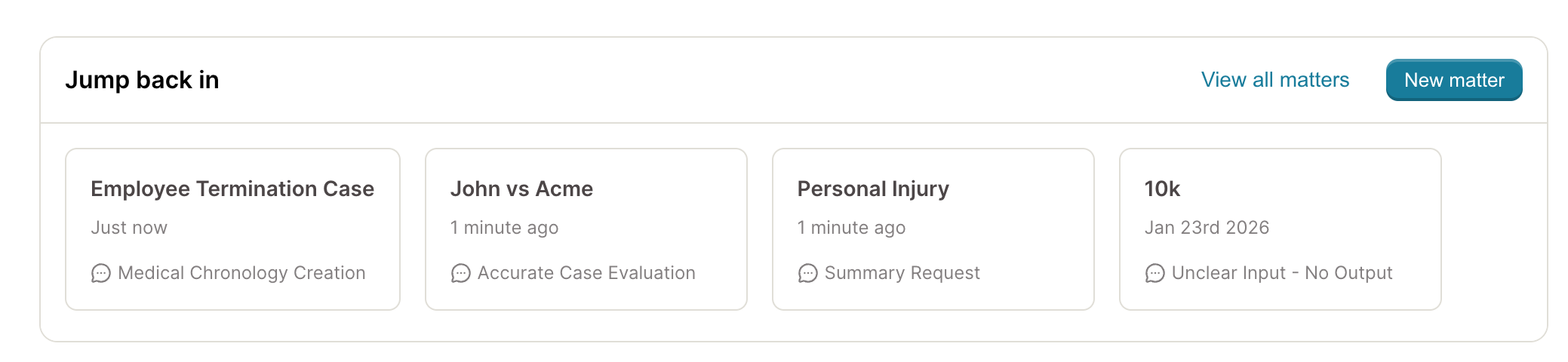
Recent matters, ordered by your latest activity: sending a message, running an agent, or similar work. Opening a matter does not count as activity, so this list reflects work done rather than pages visited.
Each card shows the matter title, the time of the last activity, and the session it happened in. Click the card to open the matter, or the session icon to go straight to that session.
View all matters opens the All Matters page, and a new matter can be created from here.
Notifications
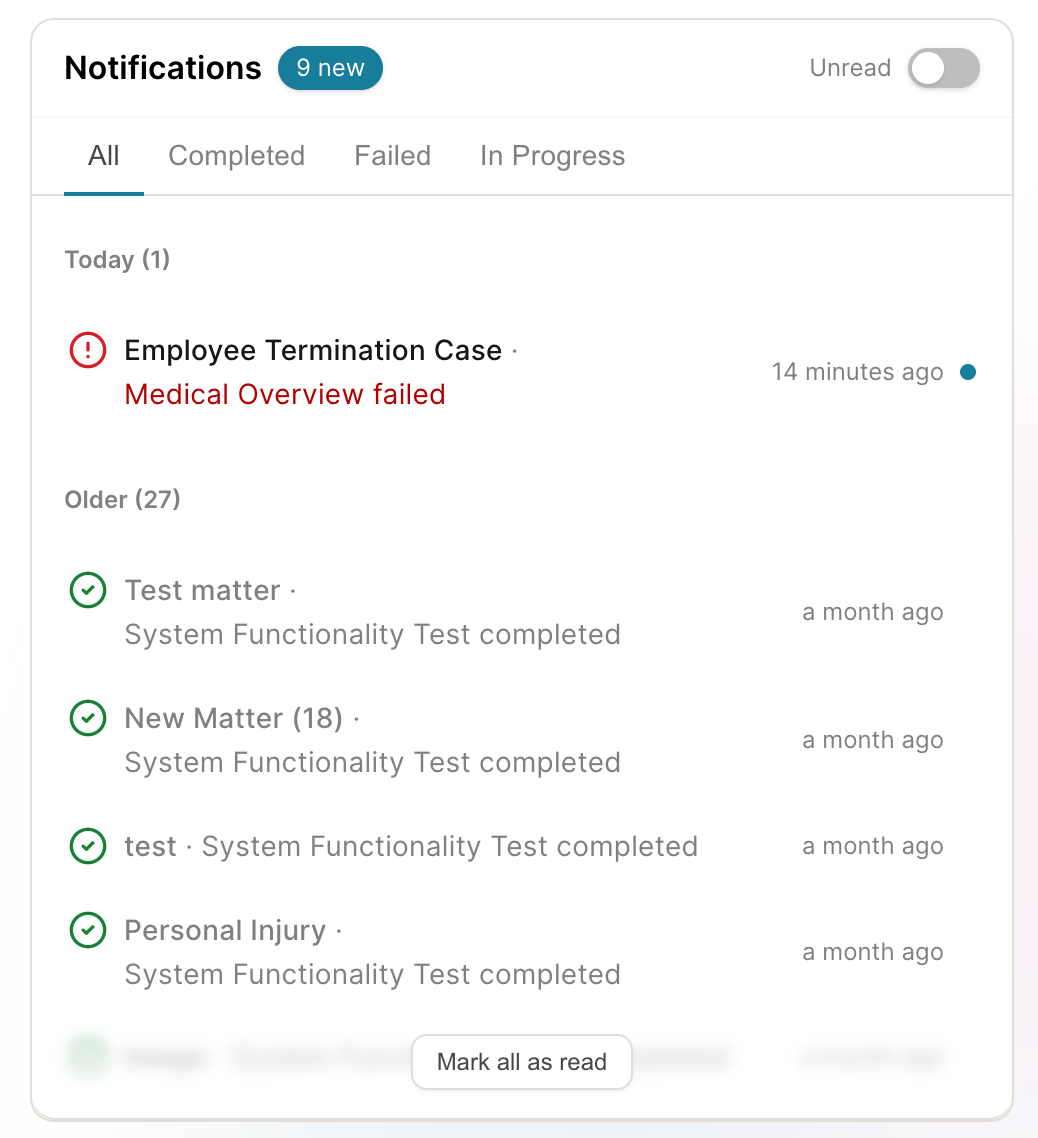
The same notifications as the bell icon, grouped by matter rather than by task, with the task nested underneath.
Notifications are user-level. What appears here is what you initiated or need to know about, on your matters. Selecting one opens the matter at the session where the work happened.
Agent Activity
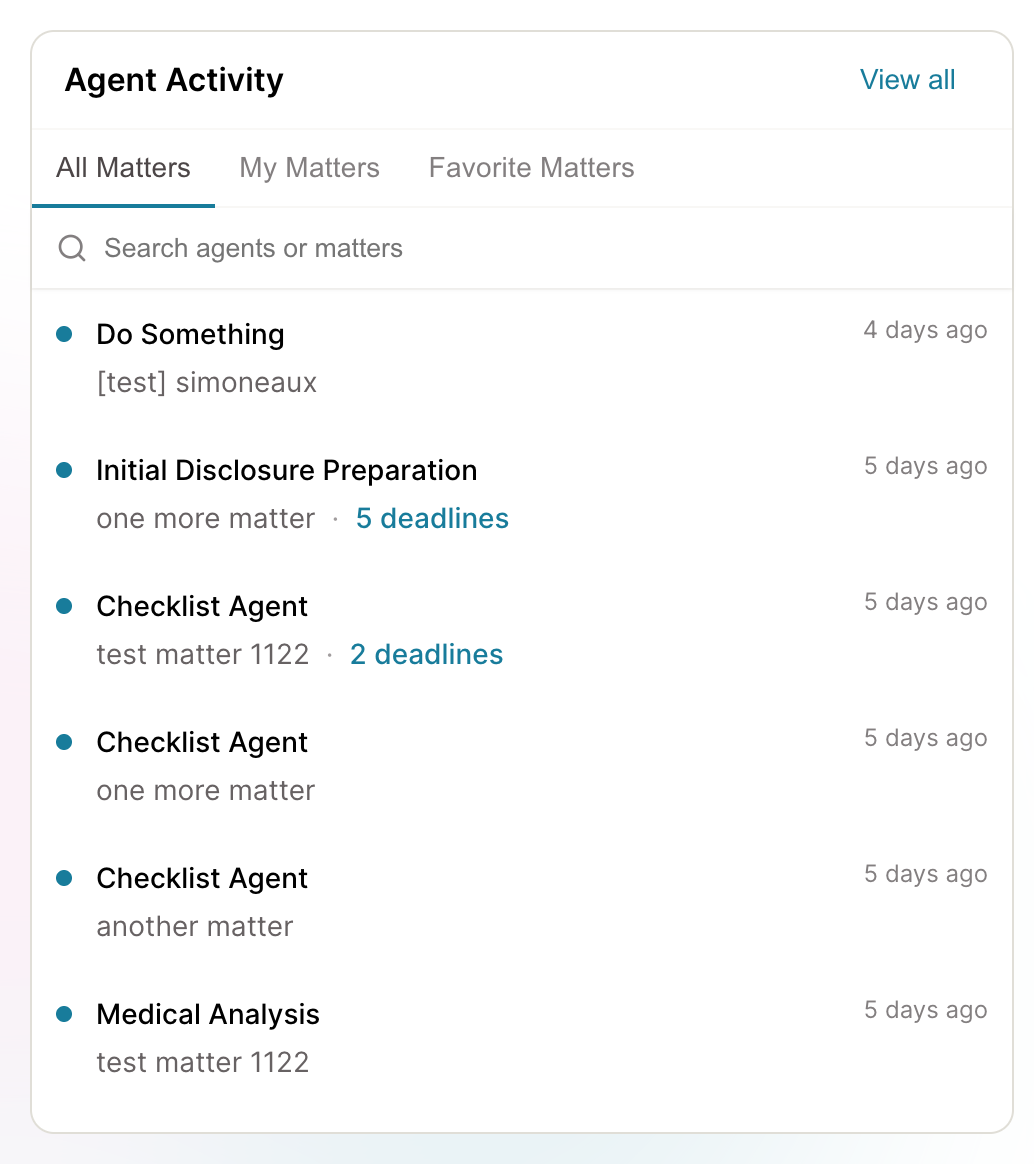
Agent work across matters. Unlike notifications, this is not user-level: it shows agent activity on the matters you are part of or own, whether or not you started the work.
Selecting an item opens the matter and the session the agent was working in.
Notifications Versus Agent Activity
The two sections look similar and answer different questions.
Notifications are things for you: scoped to your matters, with read and unread states.
Agent activity is the record of what agents did, used for oversight rather than personal follow-up. It has no read state.
A notification links into the underlying activity event, so the two are views of one record rather than two logs.
Key Terms
Jump Back In: The recent matters section, ordered by your latest work activity rather than by what you opened.
Notifications: User-level items scoped to your matters, with read and unread states.
Agent Activity: The record of agent work across matters, used for oversight.