How to Filter Missing Documents by Provider in Medical Overviews
Last updated: August 10, 2026
Overview
This article shows you how to filter the visits page in a Medical Overview to view all missing documents for a specific provider. After running a Medical Overview, you can use the filter option to narrow down which provider's missing bills or records you want to review, making it easier to target document requests and identify gaps in your case documentation.
Prerequisites
You must have already run a Medical Overview in the Matter
The Medical Overview must have surfaced at least one missing document flag
Step-by-Step Instructions
Navigate to the Visits Breakdown View — After running a Medical Overview, click the red popup notification at the top of the page that indicates missing records. This will take you to the visits breakdown view where you can see all flagged visits in detail.
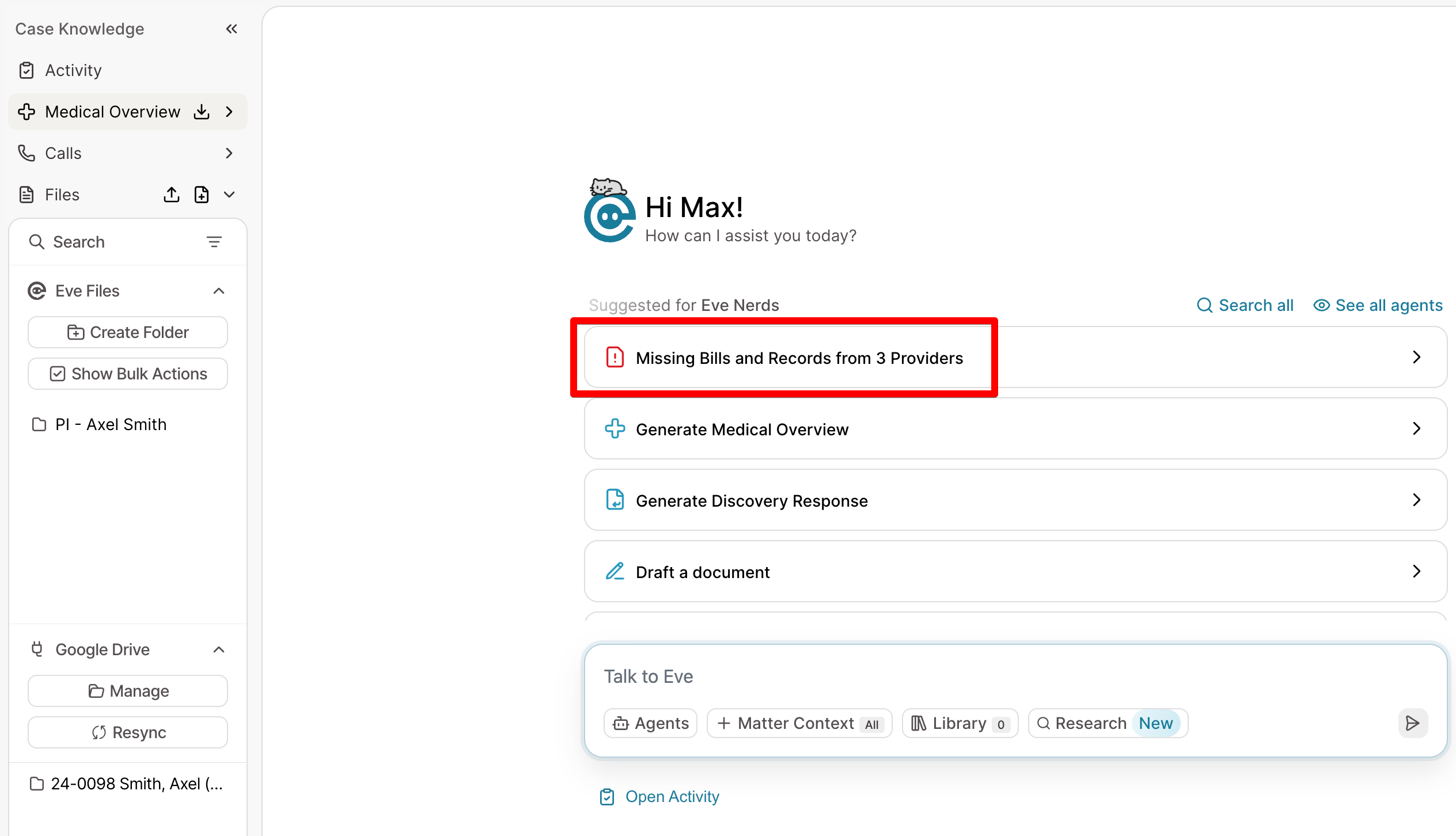
Open the Filter Options — At the top of the visits page, locate and click the filter option. This will open a menu that allows you to filter the visits list by different criteria.
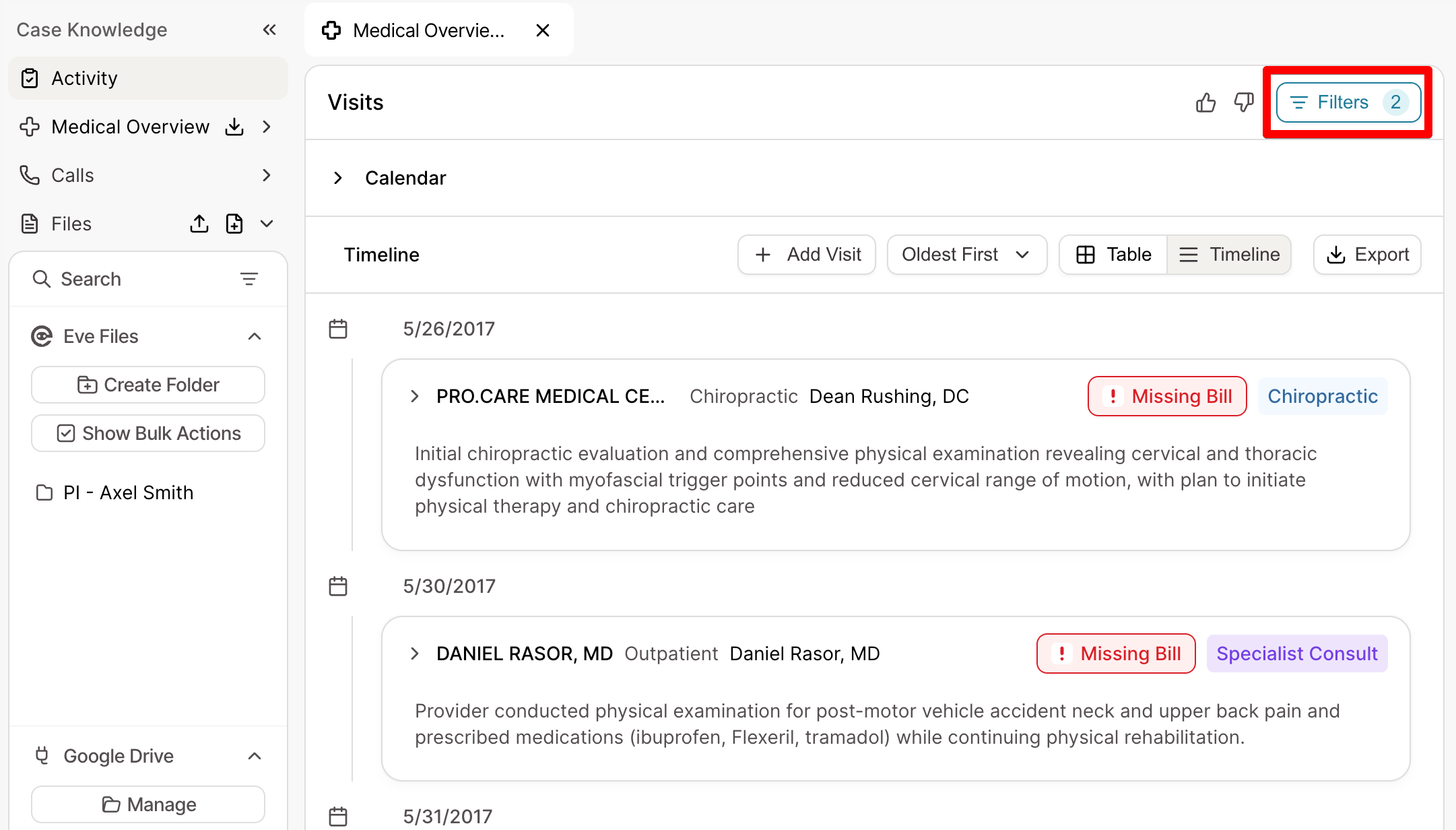
Filter by Provider — In the filter menu, select the provider you want to focus on. This will display only the visits associated with that specific provider.
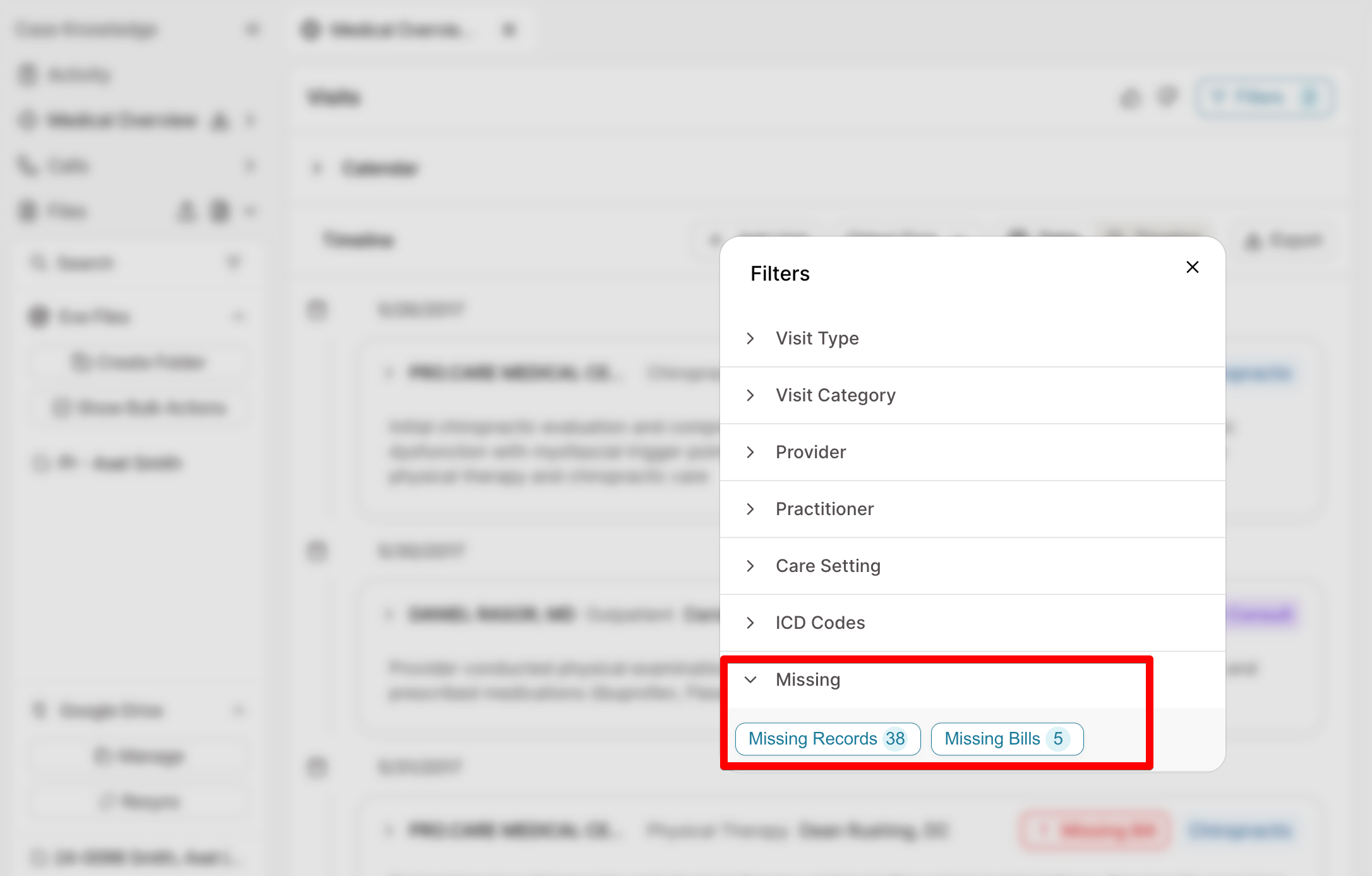
Filter by Missing Documents — In the same filter menu, enable the missing documents filter. This will further narrow the results to show only visits from the selected provider that have missing bills, missing records, or both.
Review the Filtered Results — The visits page will now display only the missing documents for your selected provider. You can review each flagged visit in detail and use this information to send targeted document requests or follow up with the provider directly.