How to Edit the Medical Overview Economic Damages Ledger in Eve
Last updated: August 10, 2026
Overview
This article shows you how to edit the Economic Damages Ledger in Eve's Medical Overview to correct extraction issues, enter payments or adjustments, and maintain an accurate damages model. It covers excluding and re-including items, adding new line items, editing existing values, and tracking changes through the audit trail. This is for attorneys, paralegals, and case managers preparing damages exports for demand packages or negotiations.
Prerequisites
A matter with a completed Medical Overview containing an Economic Damages Ledger
Edit permissions for the matter in Eve
Step-by-Step Instructions
Exclude a provider, bill, or line item — Remove any item from damages calculations at the provider, bill, or line item level. Hover over the row you want to remove and select Exclude. The row will appear greyed out and totals will update automatically. When you exclude at the provider level, all associated bills and line items are automatically excluded as well.
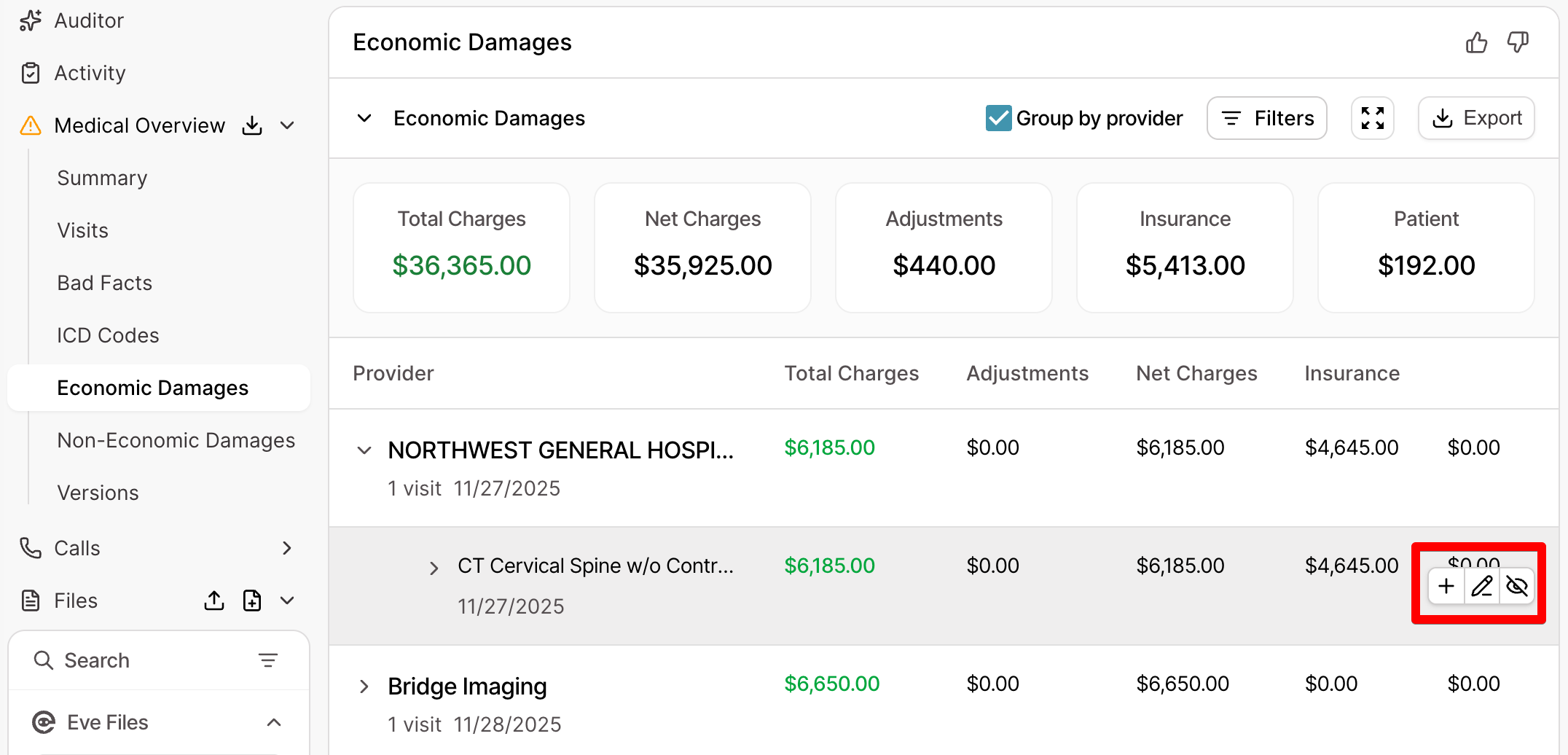
Re-include an excluded item — Restore a previously excluded item back into the ledger totals. Hover over the excluded (greyed out) row and select Include. The item and its values will return to totals immediately.
Add a payment or adjustment line item — Create a new line item under an existing bill to record payments, adjustments, or other financial entries. Hover over the bill row where you want to add the item and select the + action. Choose the line item type you want to add (payment or adjustment). A new row appears below the bill. Enter a description and value, then confirm with the checkmark or press Enter.
Edit an existing line item — Update the description or value of a line item you previously added. Hover over the line item you want to change and select Edit. Update the fields as needed, then confirm with the checkmark or press Enter.
Edit a charge, payment, adjustment, or description — Modify any editable field in the ledger to correct extraction errors or update information. Hover over the row you want to edit and select Edit. Update the editable fields, then confirm with the checkmark or press Enter. To cancel an in-progress edit without saving, press Esc.
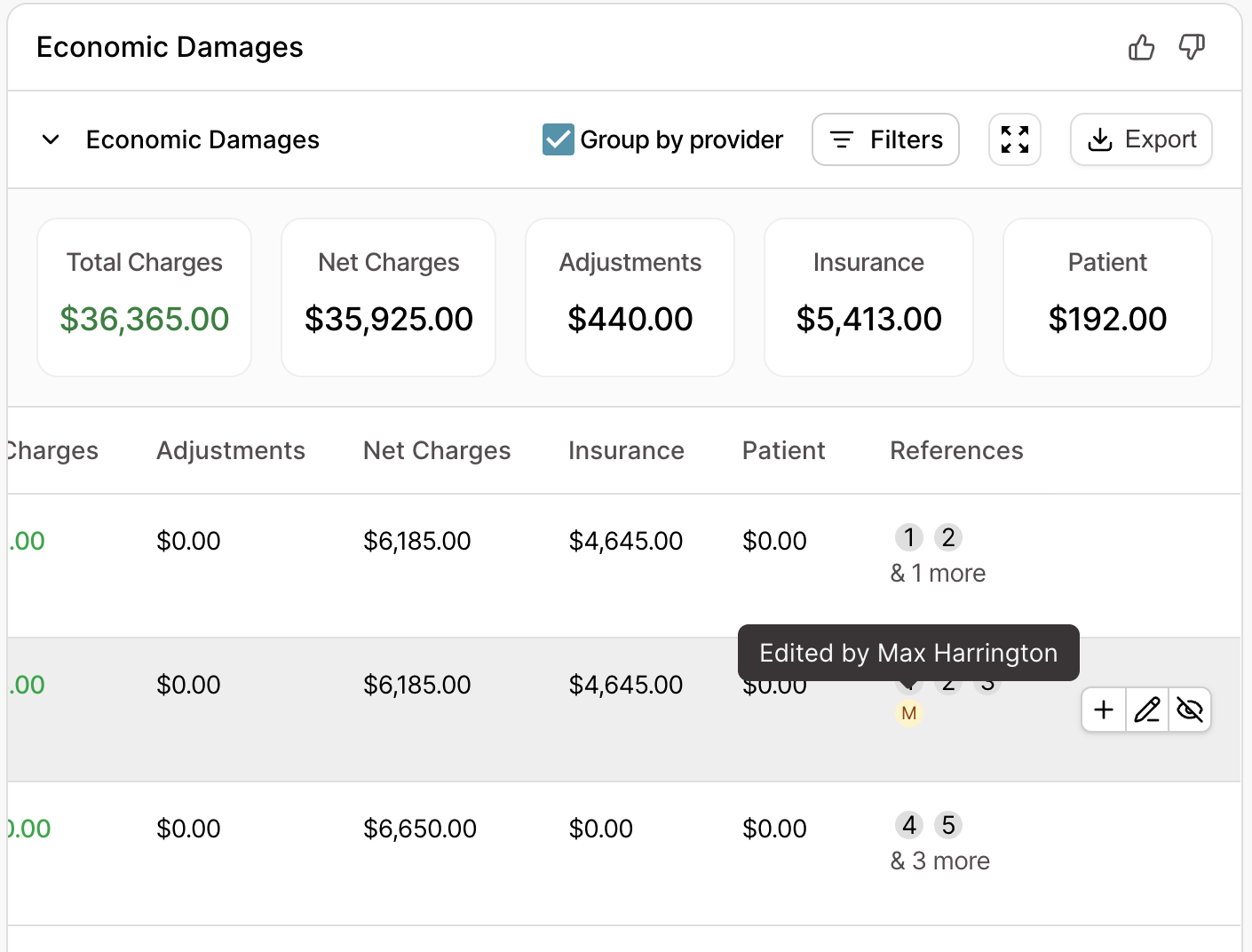
Track changes using the audit trail — Review who made edits, what changed, and when changes occurred. You can view change history in two ways: (1) In the References column, select the icon that appears on edited rows to see what changed, when it changed, and who made the change. (2) Look for an asterisk marking edited values in the ledger. Hover over the row to see the prior value and the updated value.