How to Edit the Visits Timeline in a Medical Overview in Eve
Last updated: August 10, 2026
Overview
This article shows you how to edit, add, and exclude visits in the visits timeline of a medical overview in Eve. You can correct the details Eve extracted, add visits the records missed, and remove visits that don't belong—and every change is tracked and reversible.
Prerequisites
A medical overview has been generated for the matter, so a visits timeline exists
Step-by-Step Instructions
Open the visits timeline — In the matter's medical overview, go to the visits timeline. You can work in either timeline view or table view.
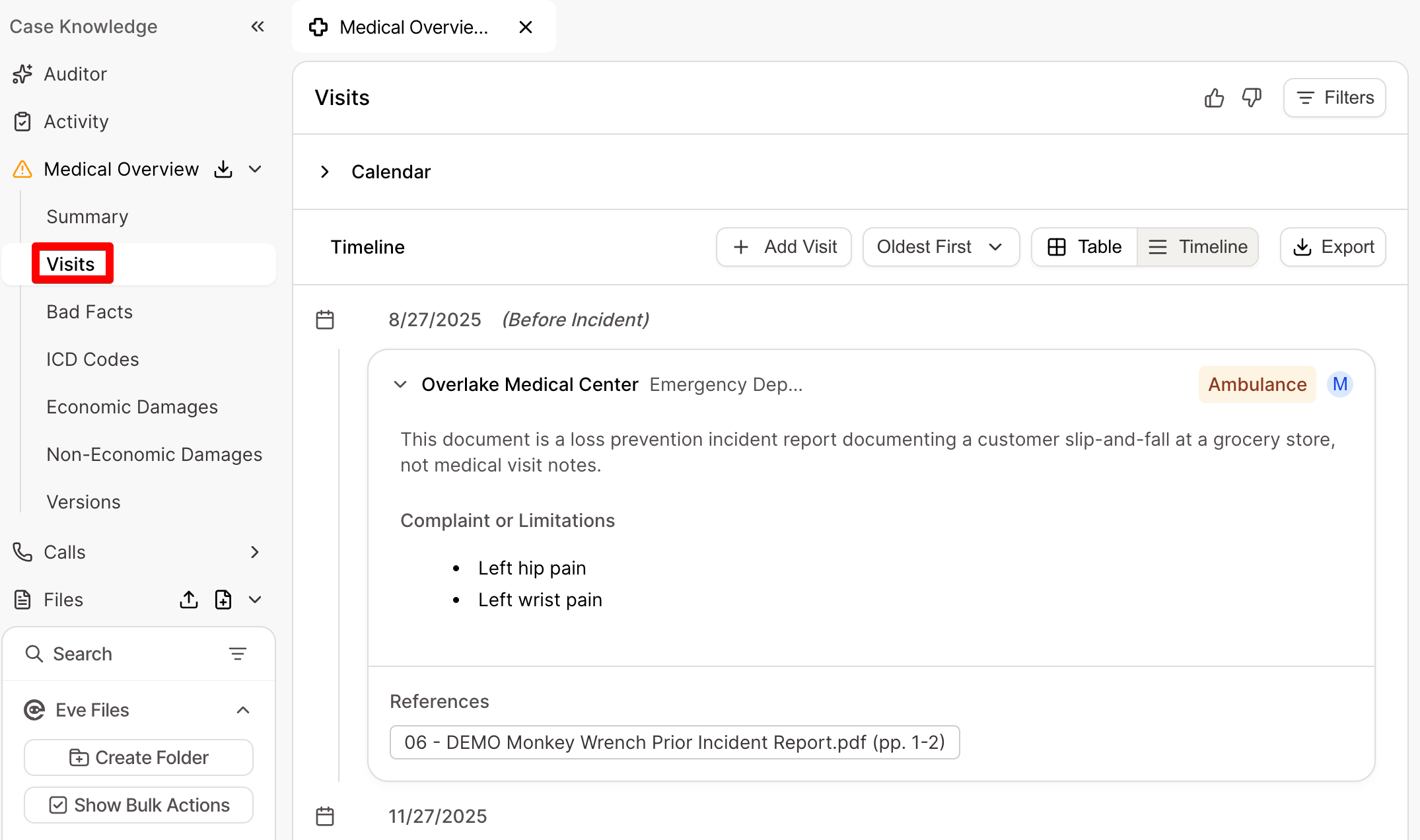
Edit a visit — Hover over a visit card (timeline view) or row (table view) and select the pencil icon. The visit is highlighted in blue to show it's in edit mode. Change any field—dates, provider, practitioner, visit category, summary, complaints/limitations, exam findings, treatments, or the recommended treatment plan—then select the green checkmark to save or the gray X to cancel.
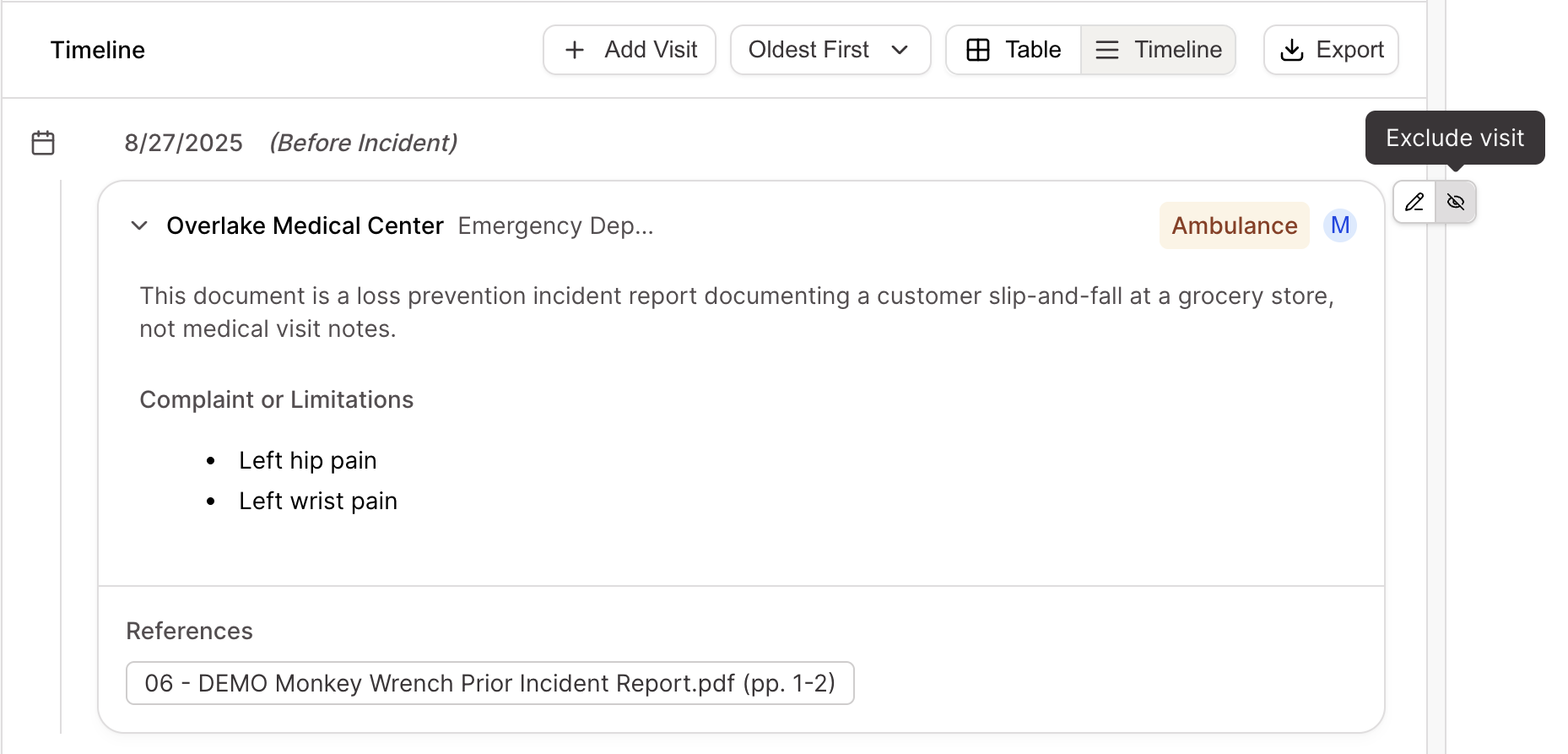
Exclude or re-include a visit — To remove a visit that isn't relevant, hover over it and select the eye icon; the visit appears crossed out and drops from case knowledge, the treatment calendar, and exports. To bring it back, hover over the excluded visit and select the eye-open icon.
Add a new visit — Select "+ Add Visit" in the header next to the sort dropdown, enter the visit details in the modal, and save. The new visit appears in the timeline and feeds into missing bill and record detection.
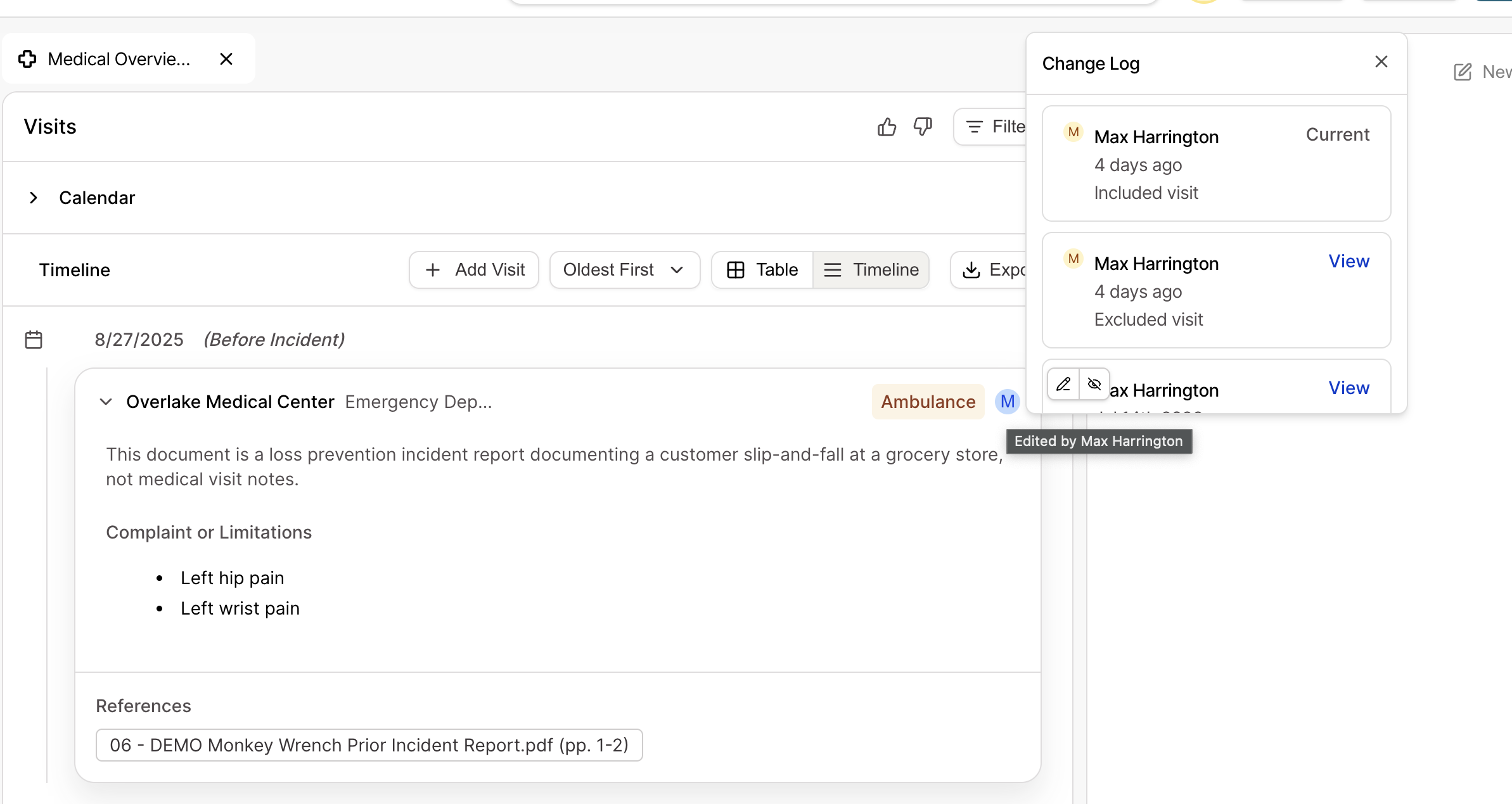
Review or revert a change — An edited visit shows the editor's initials next to the visit category. Select the initials to open the change log, which shows what changed, when, and by whom; from there you can revert to any previous version.