How to Use Toast Notifications in Eve
Last updated: March 9, 2026
Overview
This article shows you how to use toast notifications to stay informed when tasks complete or fail in Eve. Toast notifications are temporary pop-up alerts that appear briefly when a long-running task finishes, allowing you to quickly navigate to the completed work or let the notification save to your notification panel for later review.
Prerequisites
You must have started a long-running task in Eve (such as a medical overview, blueprint, legal research, or demand letter)
Toast notifications only appear when tasks complete or fail—they do not appear for tasks that are still in progress
Step-by-Step Instructions
Recognize When a Toast Notification Appears — When a task completes or fails, a toast notification appears below the notification bell in the header. The toast displays the task name, matter name, completion status (completed or failed), and a "View" button. Toast notifications appear in the same location whether you're viewing all matters or working within a specific matter.
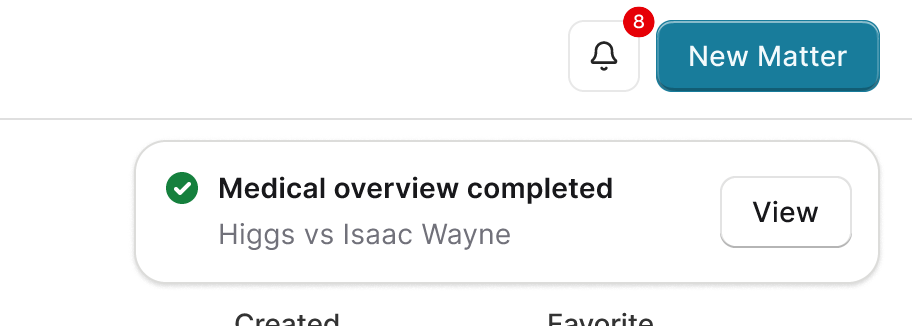
Understand Toast Notification Timing — Toast notifications remain visible for 6 seconds before automatically dismissing. During this time, you can choose to click "View" to navigate directly to the task, or you can let the notification dismiss on its own. If you don't click "View" before the toast dismisses, an unread notification is automatically added to your notification panel for later review.
View Multiple Toast Notifications — If multiple tasks complete at the same time, toast notifications stack on top of each other as they arrive. Each toast displays independently and dismisses after 6 seconds unless you interact with it.
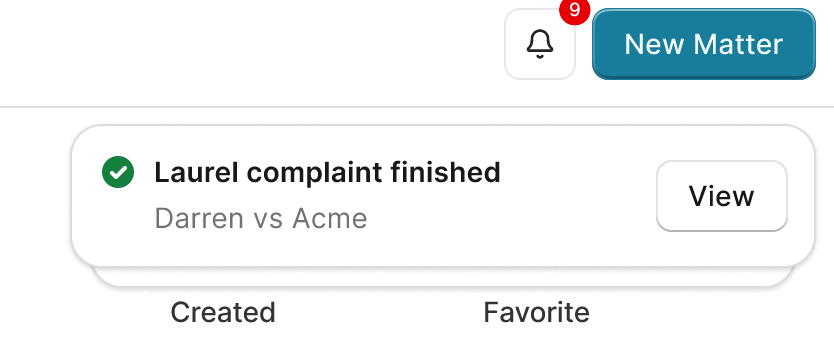
Click "View" to Navigate to the Task — When you click the "View" button on a toast notification, Eve takes you directly to the completed or failed task within the relevant matter. The notification is also marked as read in your notification panel, and the blue unread indicator is removed.
Work Across Matters with Toast Notifications — Toast notifications can appear anywhere in Eve, even when you're working in a different matter than where the task was started. For example, if you start a demand letter in one matter and then switch to work on a different case, you'll see a toast notification when the demand letter completes, allowing you to quickly return to the first matter to review the completed work.
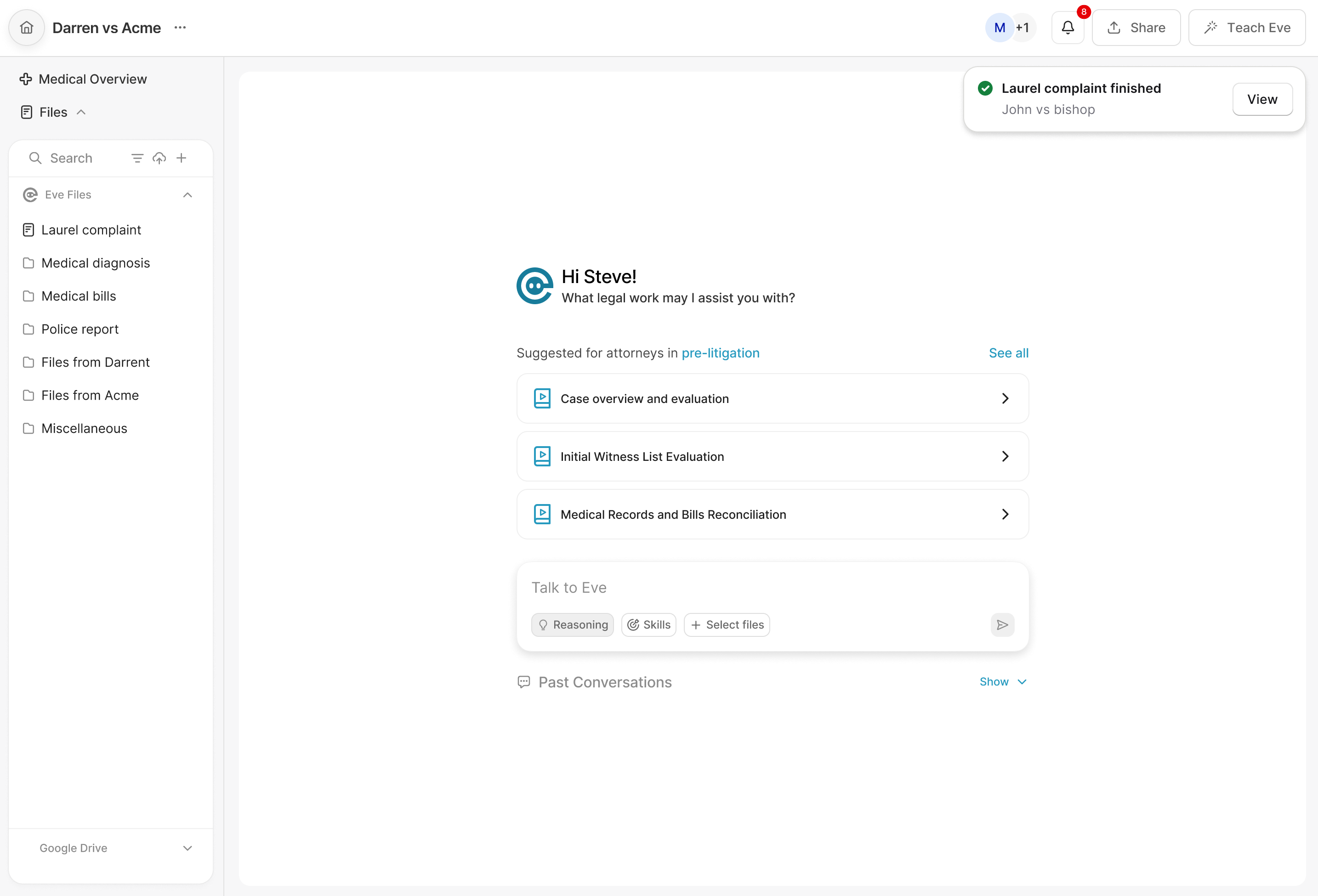
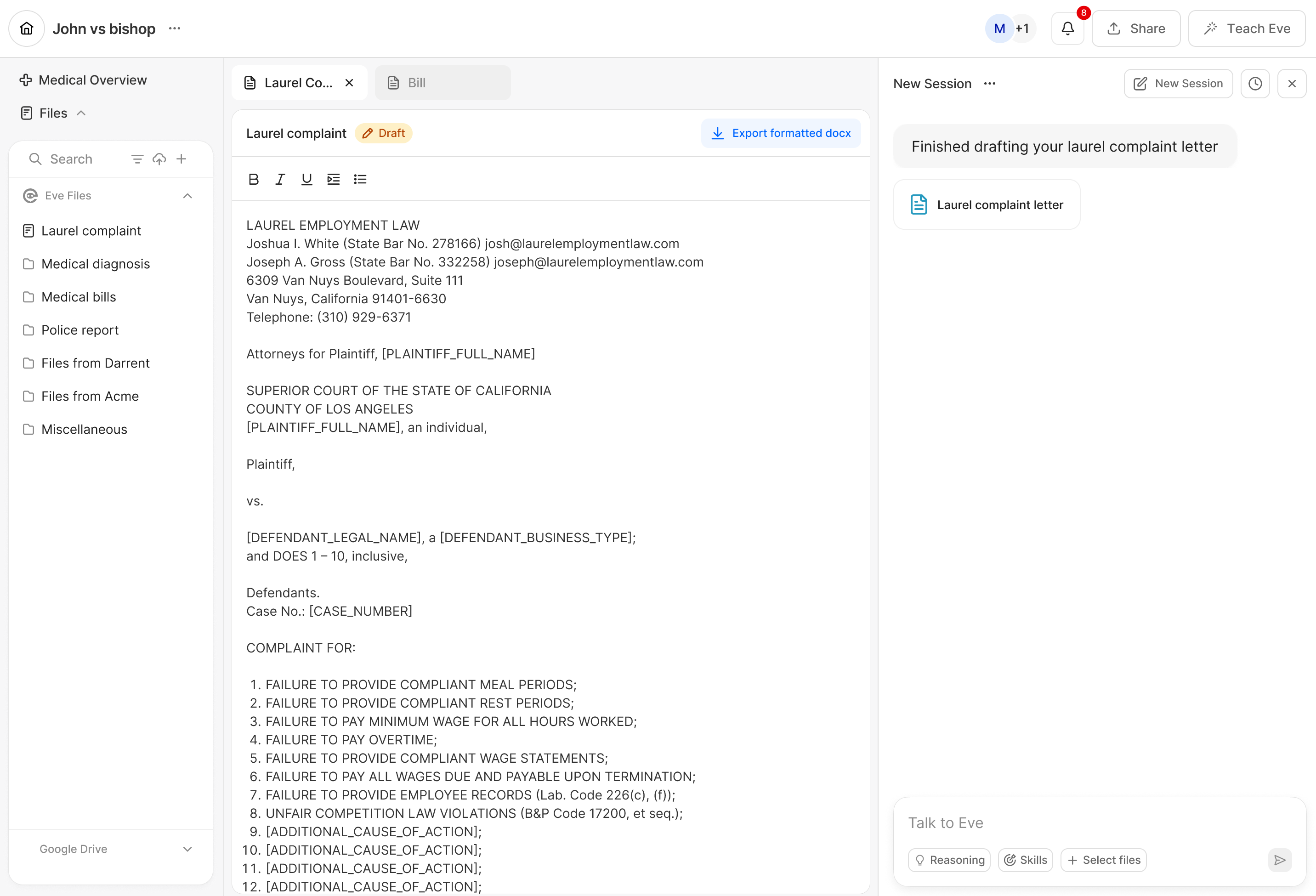
Let Toast Notifications Dismiss Automatically — If you're busy with another task and don't click "View" within 6 seconds, the toast notification will dismiss automatically. The notification is not lost—it's saved in your notification panel as an unread notification, where you can access it at any time by clicking the notification bell in the header.