How to Use Notifications in Eve
Last updated: September 30, 2026
Overview
Long tasks in Eve run in the background: medical overviews, drafting runs, legal research searches, demonstratives, agent output. Notifications are how you find out they finished, whether or not you were watching.
They reach you in two places. A toast pops up for 6 seconds at the moment a task finishes or fails. The notification panel, behind the bell in the header, is the permanent record of everything across every matter you have access to. A toast you miss is not lost: it lands in the panel as unread.
Notifications appear on completion or failure. A task still running produces no toast, though it does show in the panel with a spinner.
Toast Notifications
A toast appears below the notification bell and shows the task name, the matter it belongs to, whether it completed or failed, and a View button. The position is the same whether you are on the matters list or inside a matter.
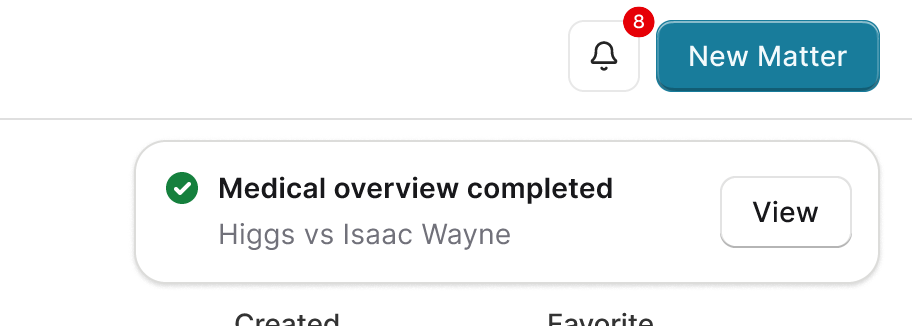
Click View to go straight to the task in its matter. The notification is marked read in the panel at the same time.
When several tasks finish at once, toasts stack as they arrive. Each one is independent and each dismisses after its own 6 seconds.
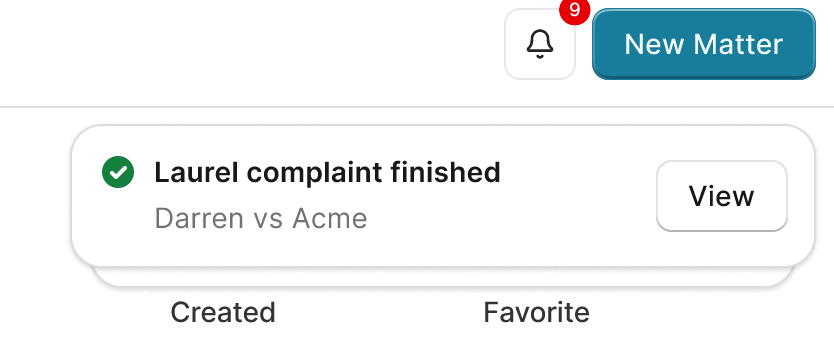
Toasts Follow You Across Matters
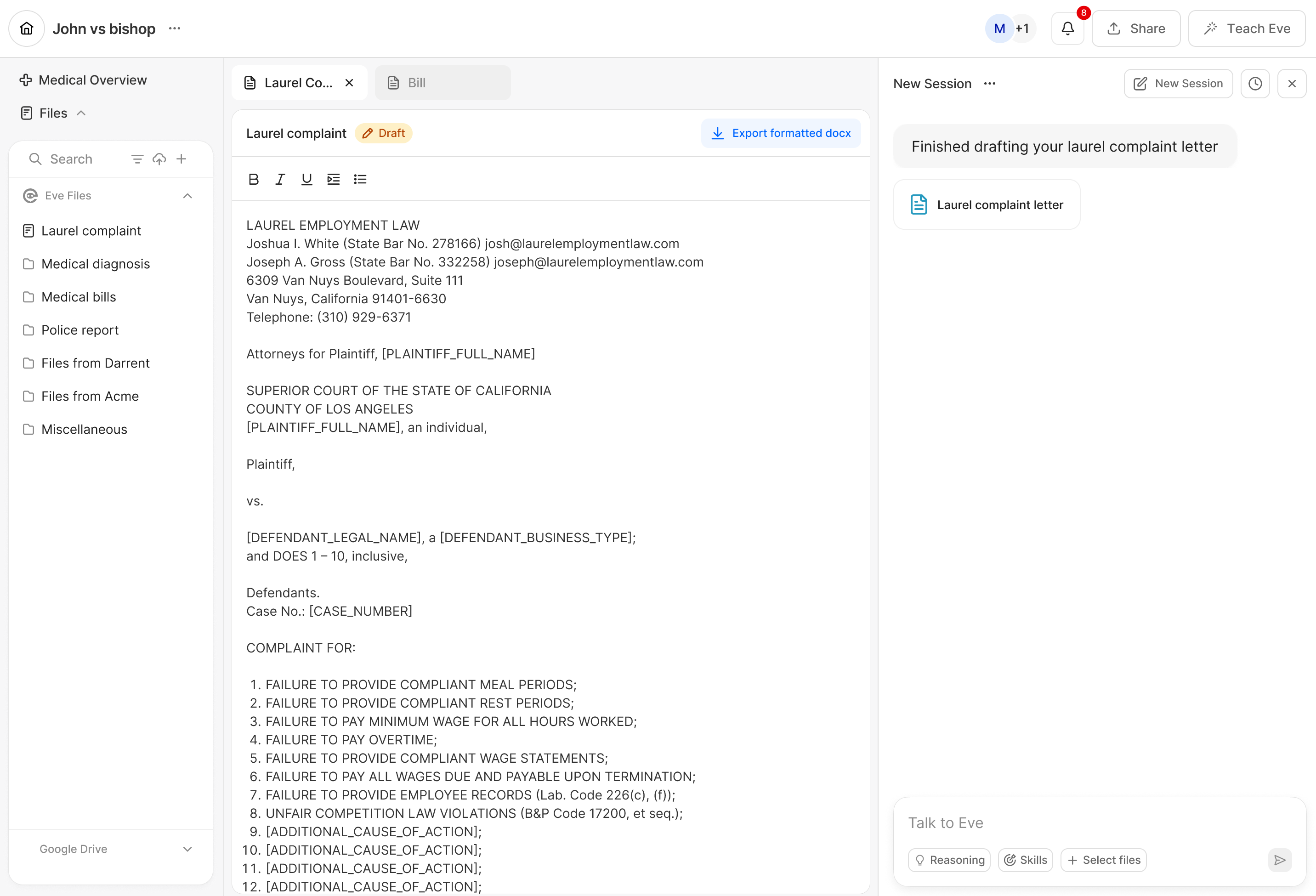
A toast appears wherever you are, including in a different matter from the one the task belongs to. Start a demand letter in one matter, move to another case, and the toast for the finished demand still reaches you.
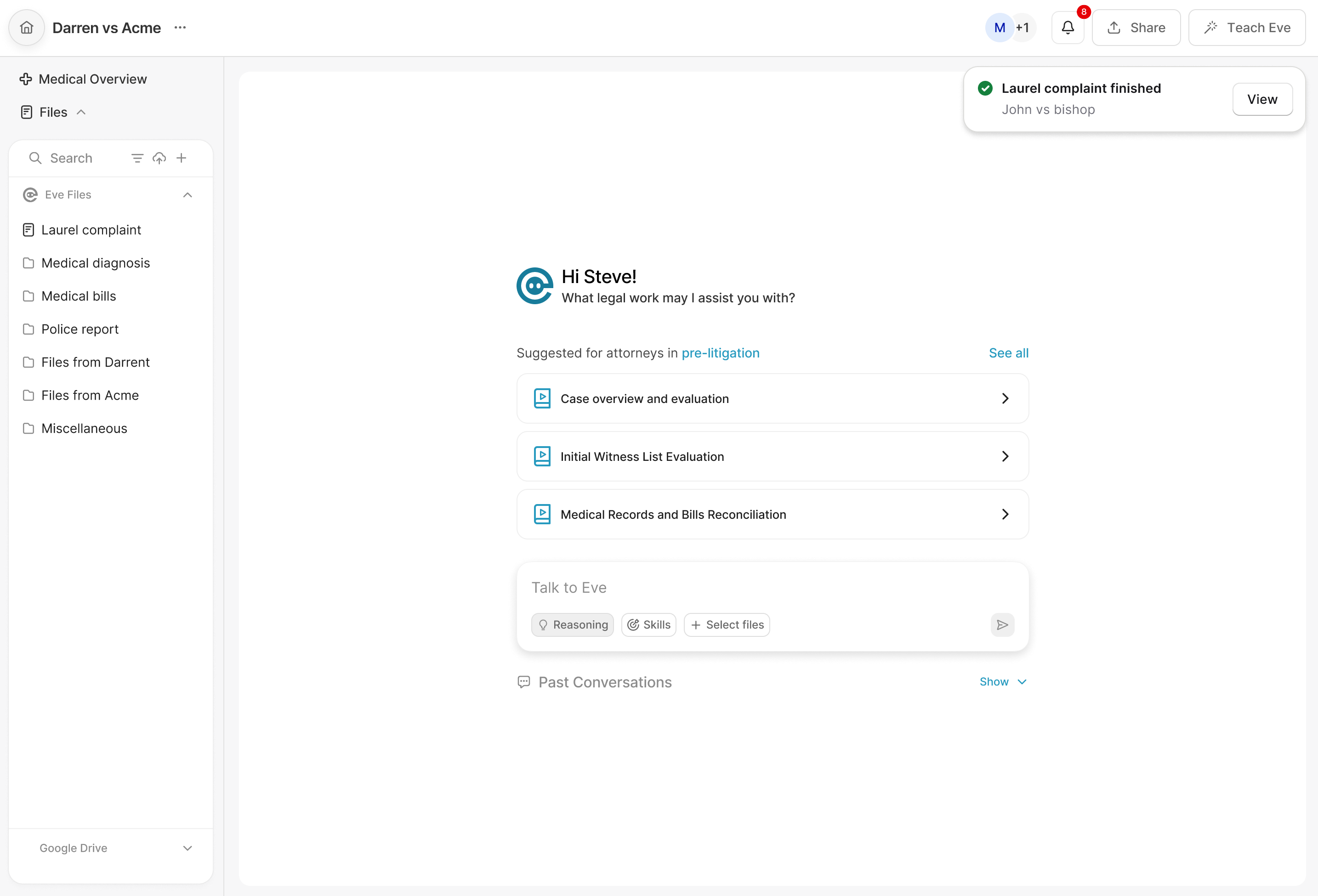
What a Toast Cannot Do
The 6 second duration is fixed.
A toast cannot be dismissed early or snoozed. Ignoring it sends it to the panel.
No toast appears for a task that is still in progress.
The Notification Panel
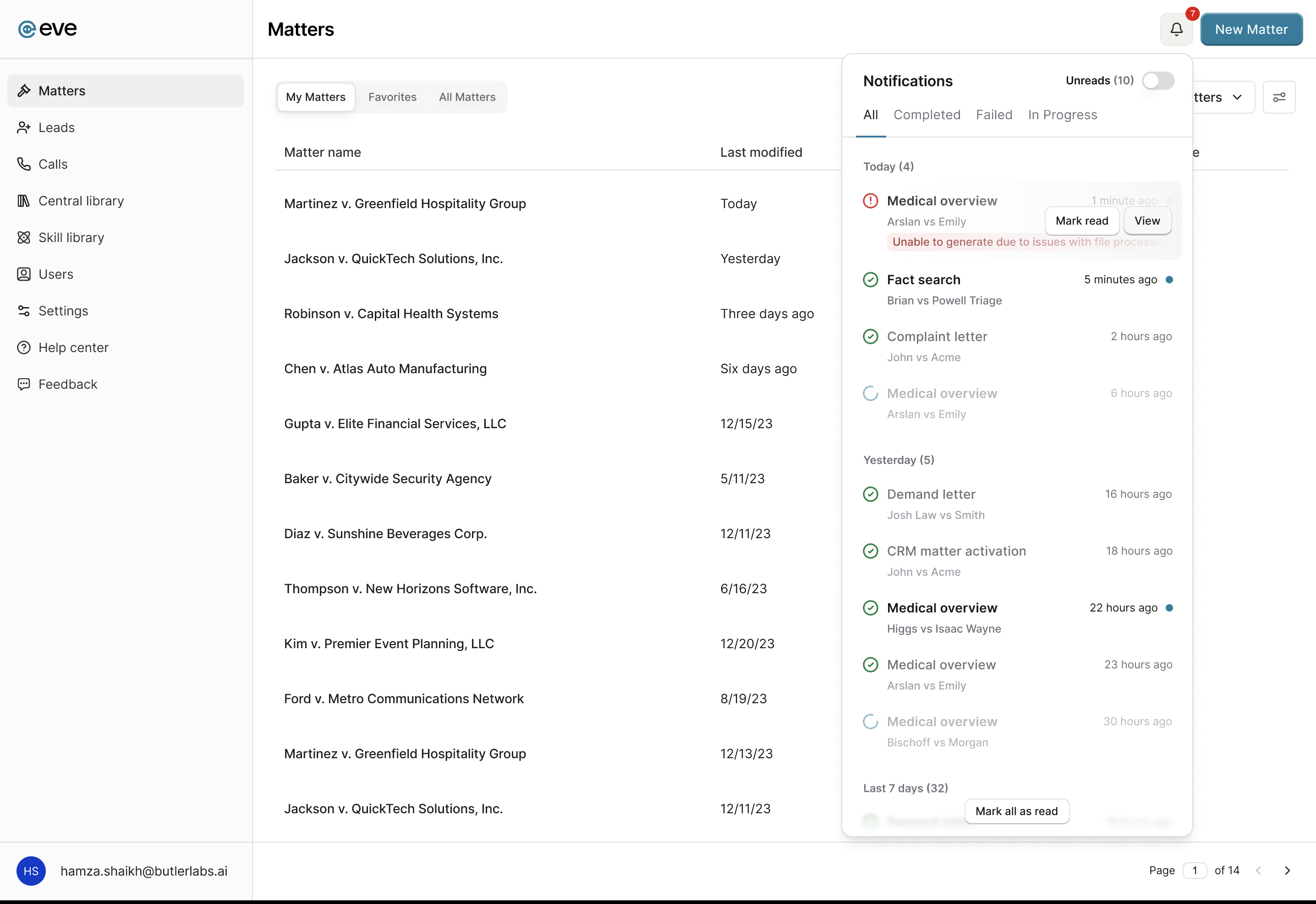
The bell sits in the top right of the header on every page. The red badge counts unread notifications and drops as you view them.
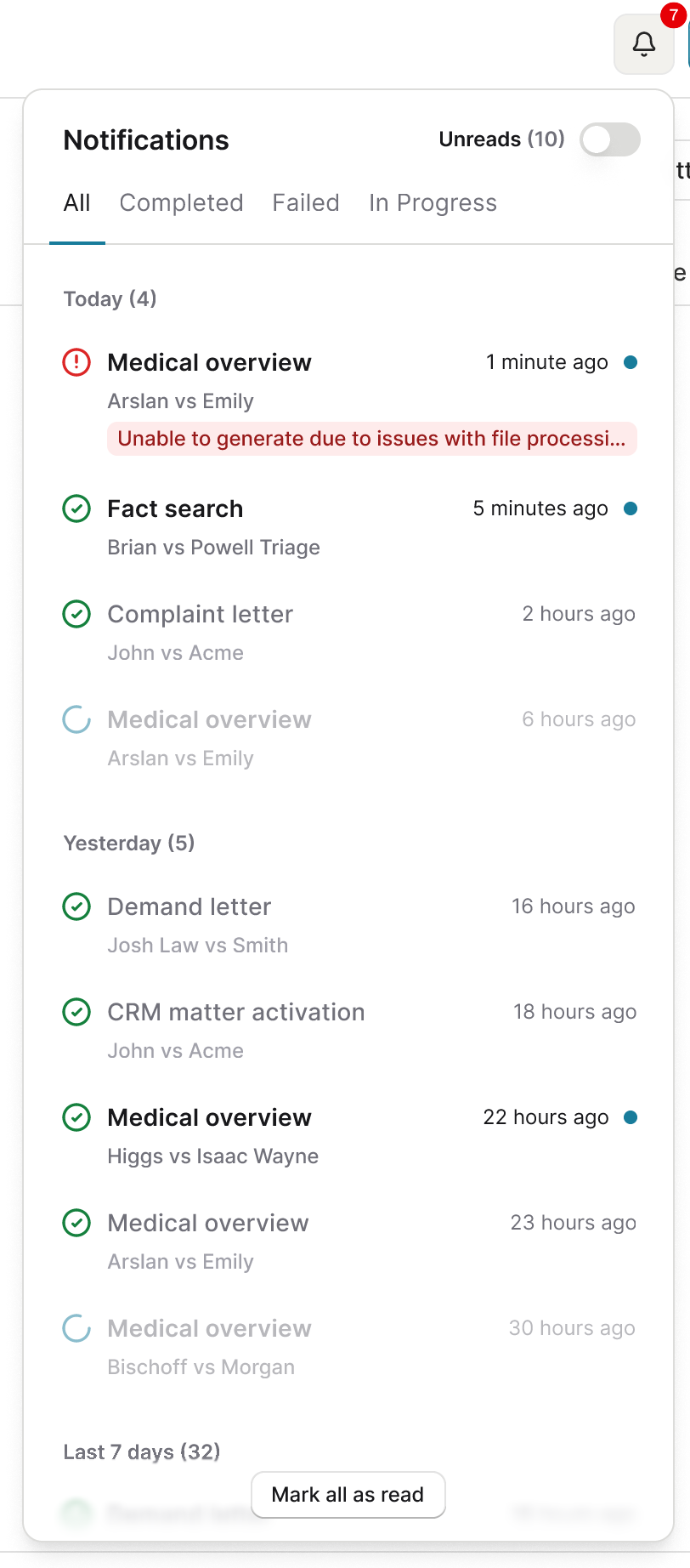
Click the bell to open the panel. It overlays whatever you are working on and can be opened from anywhere in Eve. Notifications are grouped by Today, Yesterday, Last 7 days and Older.
Filter by Read and Unread
The toggle at the top of the panel switches between unread notifications and read ones, so you can work through new activity or go back through the history.

Read the Notification
Each notification shows the task name, the matter it belongs to, the time it finished or failed, and a status icon.
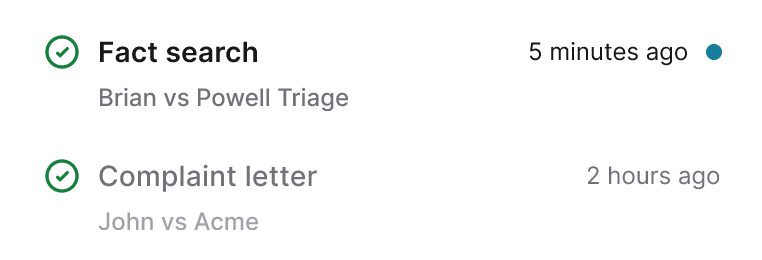
Unread notifications show bolder text with a blue dot next to the time.
Read notifications show grey text and no dot.
Status Icons
A green checkmark means the task finished successfully.

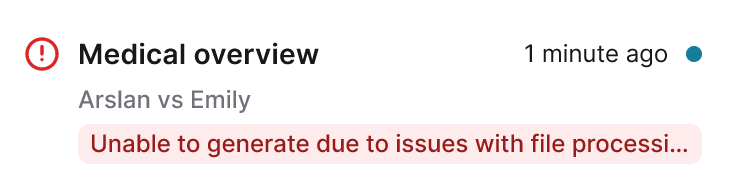
A red alert icon means the task failed, with a short message explaining why.
A loading spinner means the task is still running. The notification is greyed out because there is nothing to open until it finishes or fails.

Open the Task
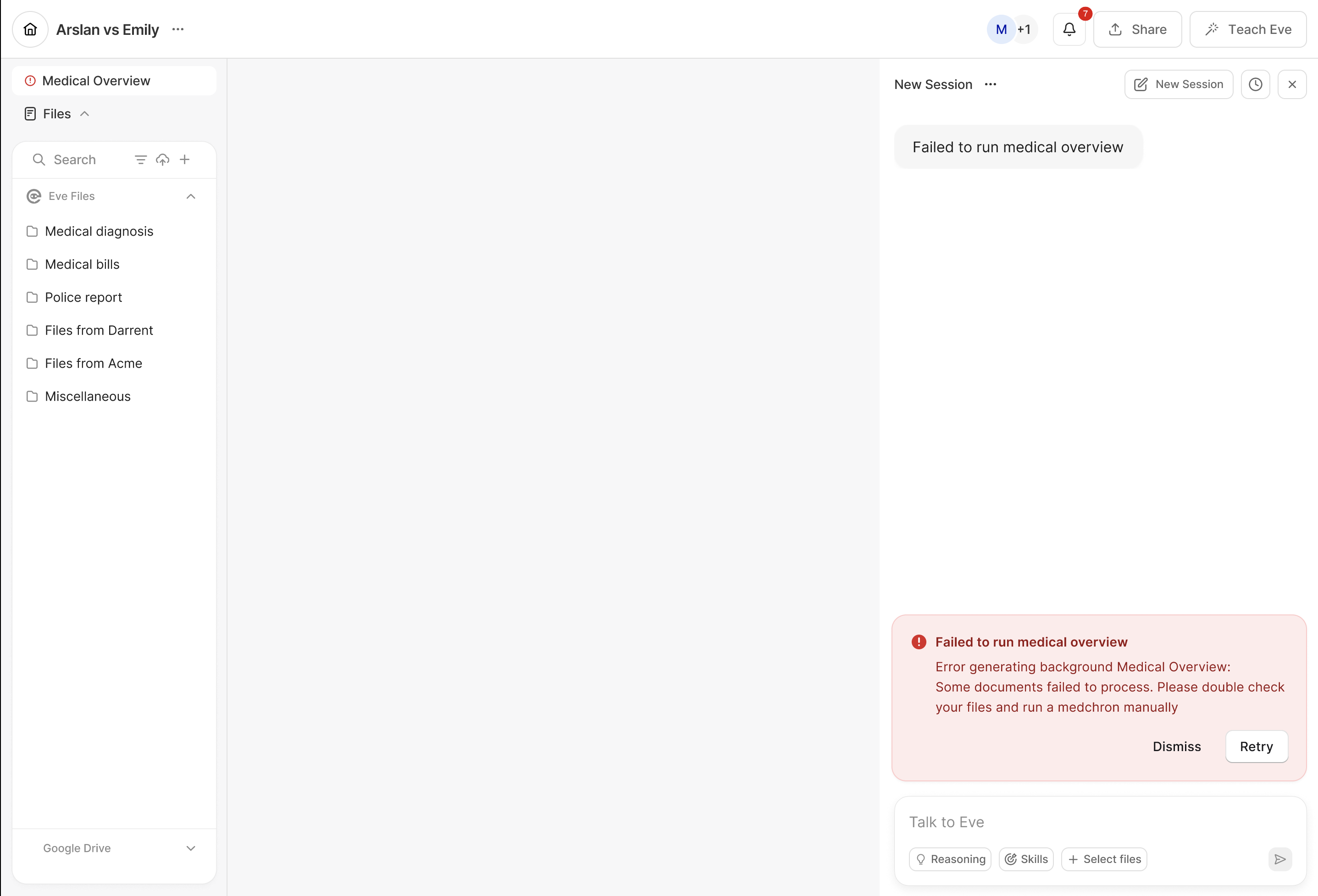
Hover over a notification to reveal View. Clicking it marks the notification read and takes you straight to the task in its matter. A failed medical overview opens on the failure detail, so you can see what went wrong rather than guessing.
Related
Email and delivery settings: 📄 Global Notifications in Eve
If notifications never arrive: 📄 Notifications Not Appearing or Missing in Eve
Dismiss and mark as read: 📄 Confusion Between Dismiss and Mark as Read in Eve Notifications