How to Install Eve Scribe on Mac
Last updated: September 30, 2026
Overview
This article explains how to install and set up Eve Scribe on a Mac. Because Eve Scribe is in Alpha, the app isn't signed yet, so macOS will block it the first time — these steps include the temporary workaround. A signed app is planned for the beta release.
Prerequisites
The Eve Scribe installer for Mac (Eve provides the download link).
Step-by-Step Instructions
Install the app — Open the DMG file, drag the Eve Scribe icon into your Applications folder, then close the DMG window.
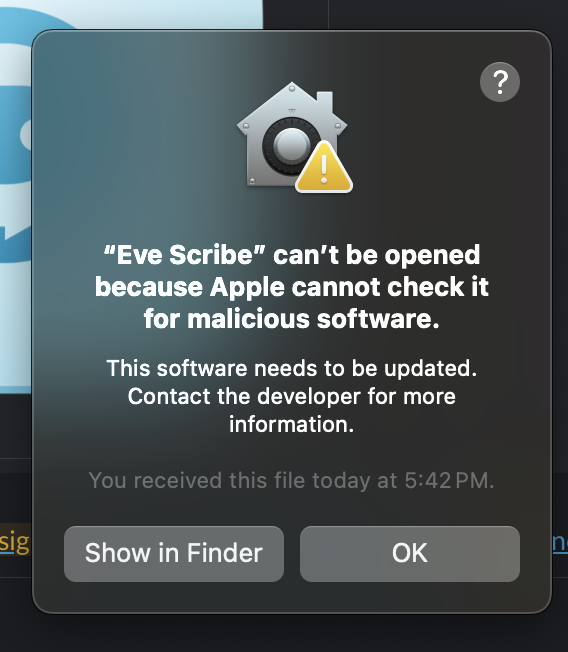
Open Eve Scribe — Launch Eve Scribe from your Applications folder. macOS will warn that it “can't be opened because it can't check for malicious software” — click OK.
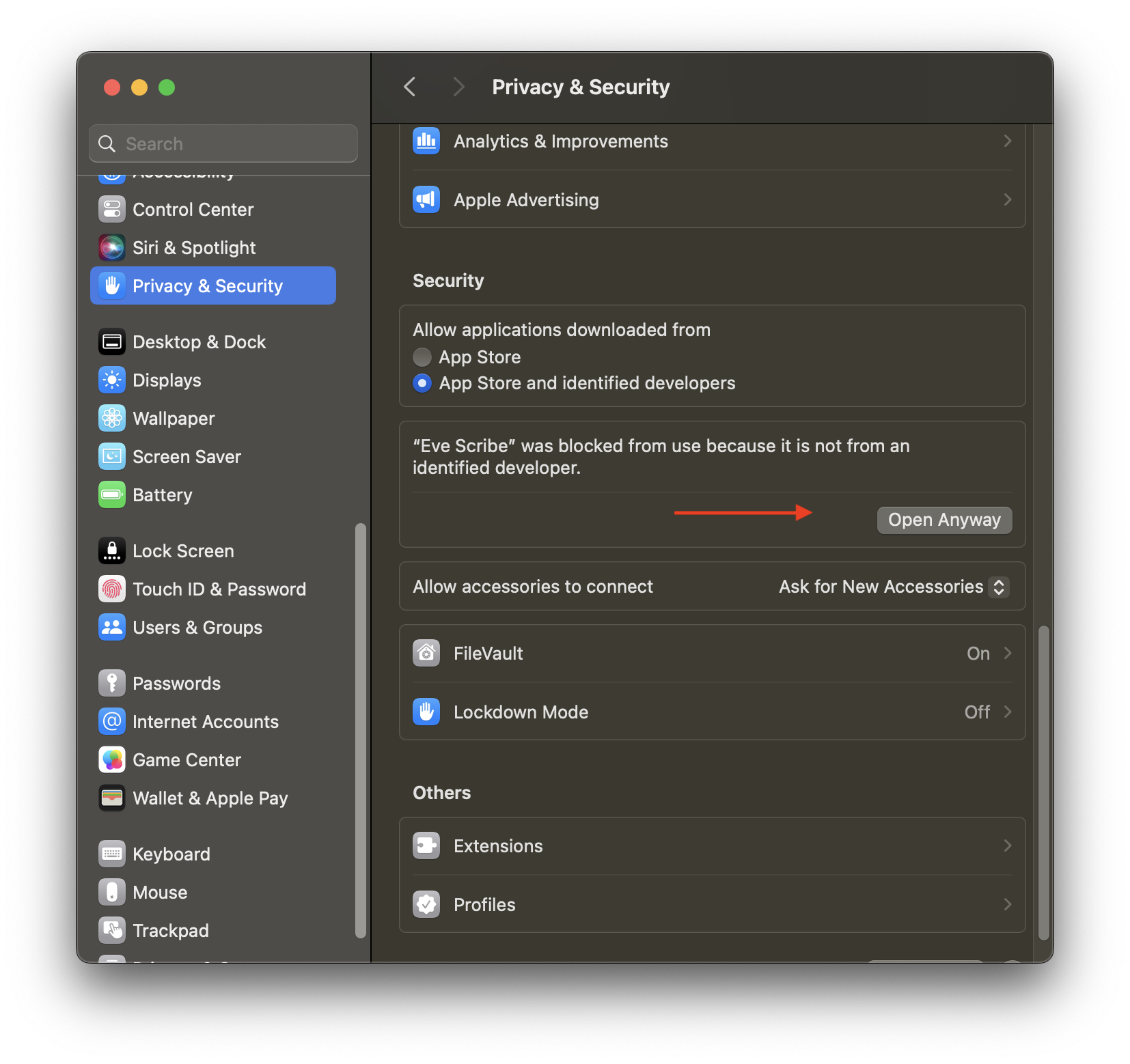
Allow the app in Security settings — Open System Settings → Privacy & Security, scroll to the bottom to the message that Eve Scribe was blocked, click Open Anyway, and confirm with Open.
Log in — Log in with your credentials on the Eve Scribe login page.
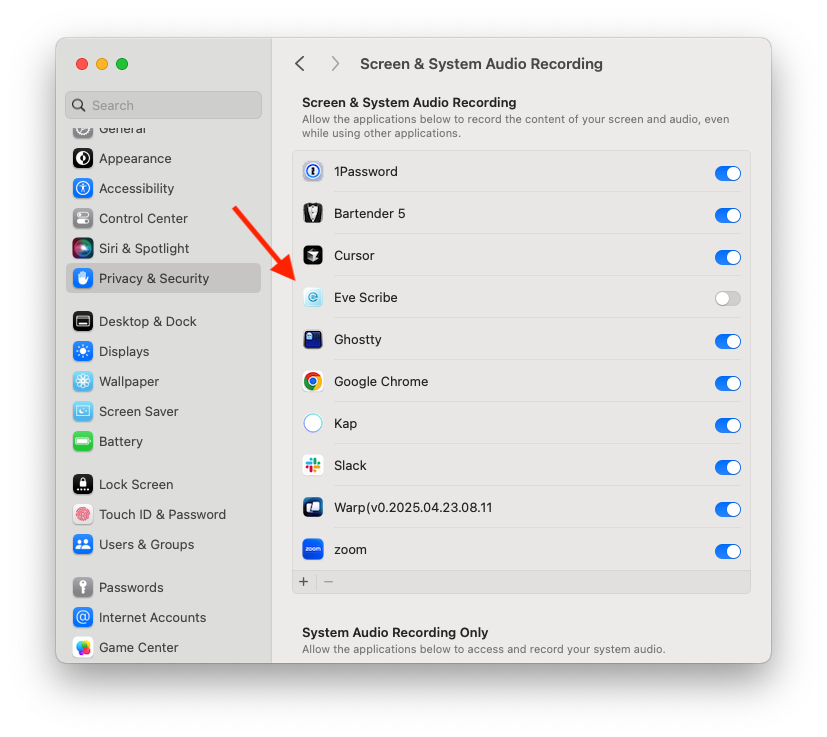
Grant screen & audio recording permission — Start a call; when prompted, click Open System Settings, find Eve Scribe under Screen & System Audio Recording, toggle it on, then click Quit & Reopen.