The Eve Support Portal: What It Is and How to Sign In
Last updated: November 10, 2026
Overview
The Eve Support Portal is where you can send a request to the Eve support team and keep an eye on it until it's solved. It lives at portal.eve.legal and it's separate from Eve itself, so you can use it even if you can't get into your Eve account.
This article covers what the portal does, how to sign in, and what to do if something doesn't work.
What you can do in the portal
Submit a ticket. Choose Technical Support for product issues and questions, or Account Billing for anything about invoices or your subscription.
Check on a ticket. See where each request stands, who submitted it, and when.
Find help fast. The header links to Eve Resources and the Eve Knowledge Base, and you can get back to Eve from the Login to Eve link.
How to sign in
Eve's portal doesn't use a password. Instead, it emails you a one-time code each time you sign in.
Go to \[portal.eve.legal\](https://portal.eve.legal)
Enter your work email address.
Check your inbox for the one-time code from the portal and enter it.
You're in. You'll land on your list of tickets.
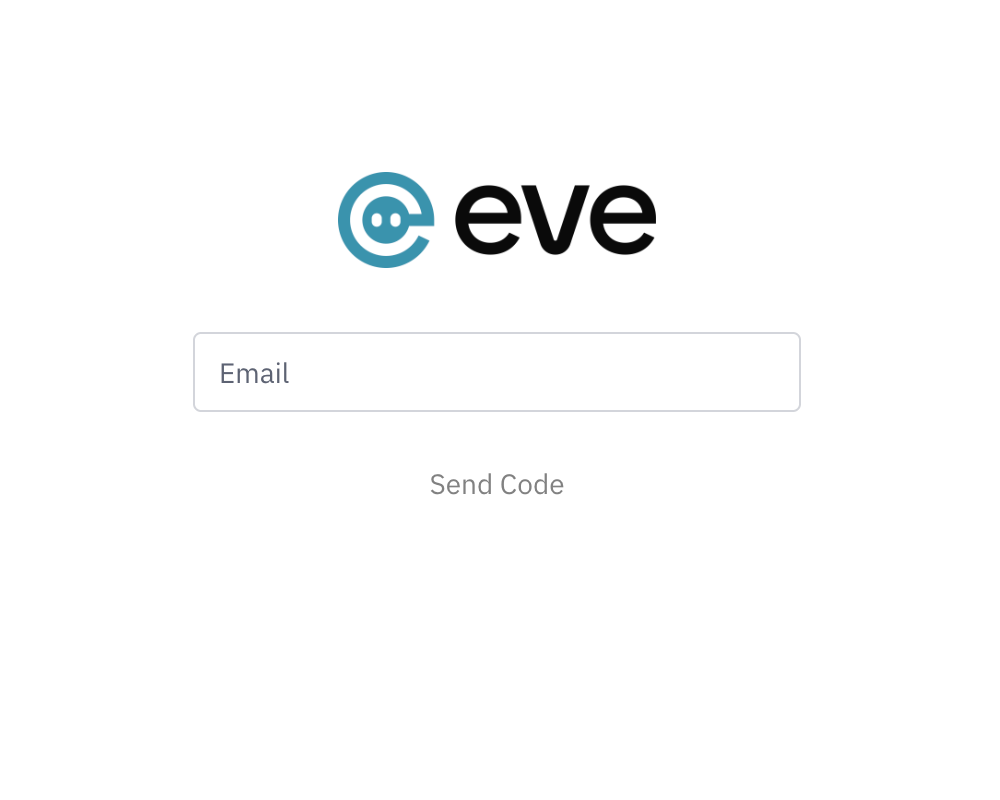
Use the same email address your firm uses with Eve. The portal matches your email domain to your firm's account, so a personal address (like Gmail) won't work.
Access
If you try to sign in and you aren't set up yet, ask your firm's portal admin to invite you (see 📄 How to Invite Colleagues and Manage Roles in the Eve Support Portal), or contact Eve support.
Admins and Members
Everyone at your firm has one of two roles in the portal.
Member | Admin | |
|---|---|---|
Submit tickets | Yes | Yes |
See your own tickets | Yes | Yes |
See tickets from everyone at your firm | No | Yes |
Invite colleagues | No | Yes |
Change someone's role | No | Yes |
New users start as Members. If your firm needs an Admin, contact Eve support or your Customer Success Manager.
Submit a ticket
Sign in to the portal.
Choose the form that fits: Technical Support or Account Billing.
Fill in your name, email and a short subject. For Technical Support, add the page URL where the issue happened if you can.
Describe what's going on. What you were trying to do, what you expected, and what happened instead are the most useful details.
Submit the form.
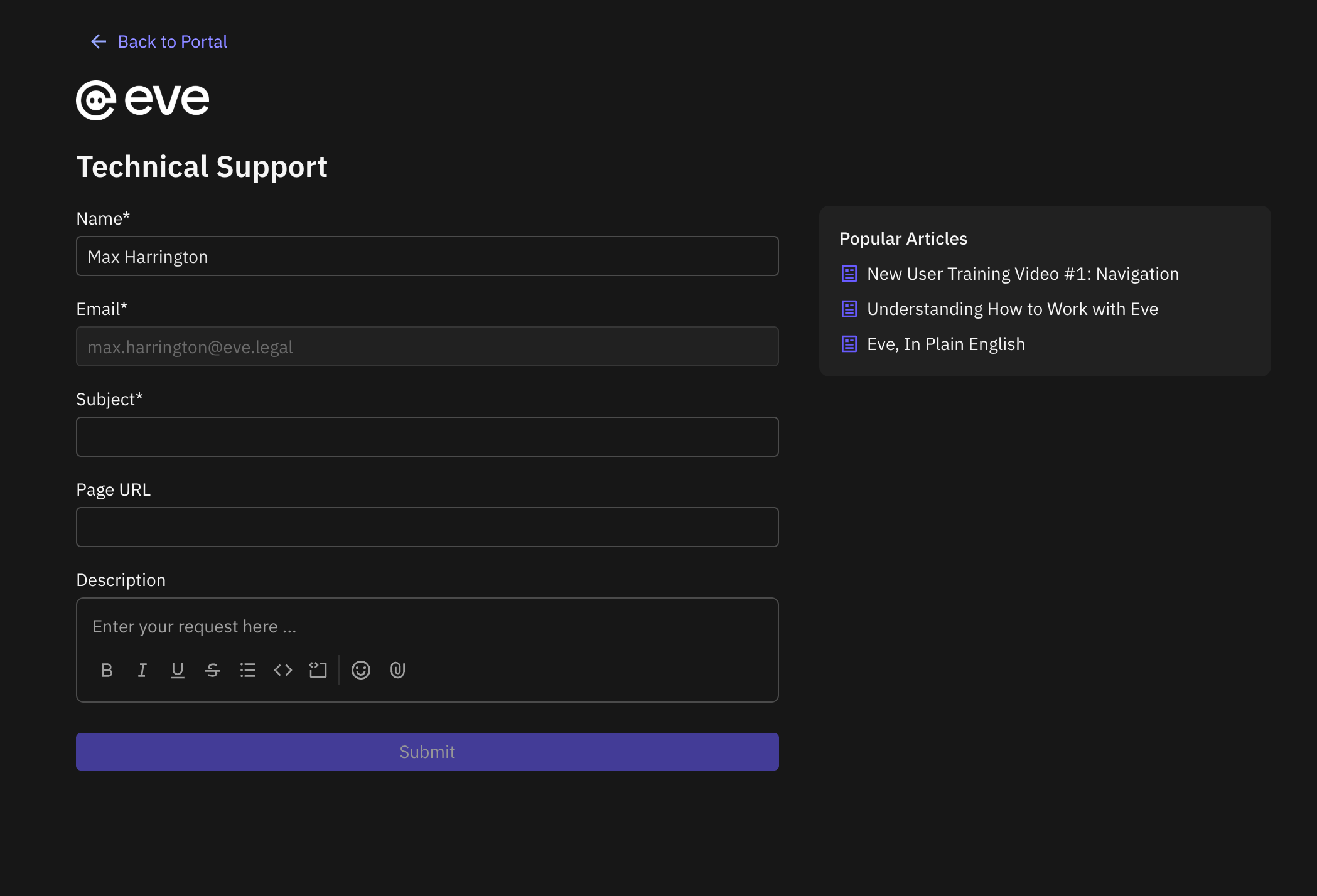
You can add colleagues to the CC line if they should follow along.
Bookmark portal.eve.legal! It's the quickest way to check on a ticket without digging through your inbox.
Understand ticket statuses
Each ticket in your list has one of three statuses.
Status | What it means |
|---|---|
On Eve | The Eve team is working on it, so you're waiting on us. |
On [your firm's name] | Eve needs something from you or your team. Check your email for the question. |
Closed | The request is resolved. |
The list also shows the issue number, who requested it, the subject, request type, category and the date it was created. Tickets submitted before January 1, 2026 don't appear in the portal.
If you can't sign in
Check your email address. It needs to match your firm's email domain.
Look for the code. Check spam or junk folders, and request a new code if it's been a few minutes.
Make sure you've been invited. The portal only works for people who have been added to your firm.
Still stuck? Reach Eve support another way: email us at support@eve.legal