How to Invite Colleagues and Manage Roles in the Eve Support Portal
Last updated: November 10, 2026
Overview
If you're an Admin in the Eve Support Portal, you can invite colleagues at your firm and choose whether each person is a Member or an Admin. This article walks through both.
New to the portal? Start with 📄 The Eve Support Portal: What It Is and How to Sign In
Before you start
You need to be an Admin in the portal. Members can't invite people or change roles. If you aren't sure which you are, you'll see a Members tab only if you're an Admin.
The person you're inviting needs a work email address on your firm's domain.
You can only invite people to your own firm's portal account.
Admin or Member?
Member | Admin | |
|---|---|---|
Submit tickets | Yes | Yes |
See their own tickets | Yes | Yes |
See every ticket from your firm | No | Yes |
Invite people and change roles | No | Yes |
Most people should be Members. Make someone an Admin if they manage support for the firm, such as an office manager or your Eve champion.
How to invite a colleague
Sign in at https://portal.eve.legal.
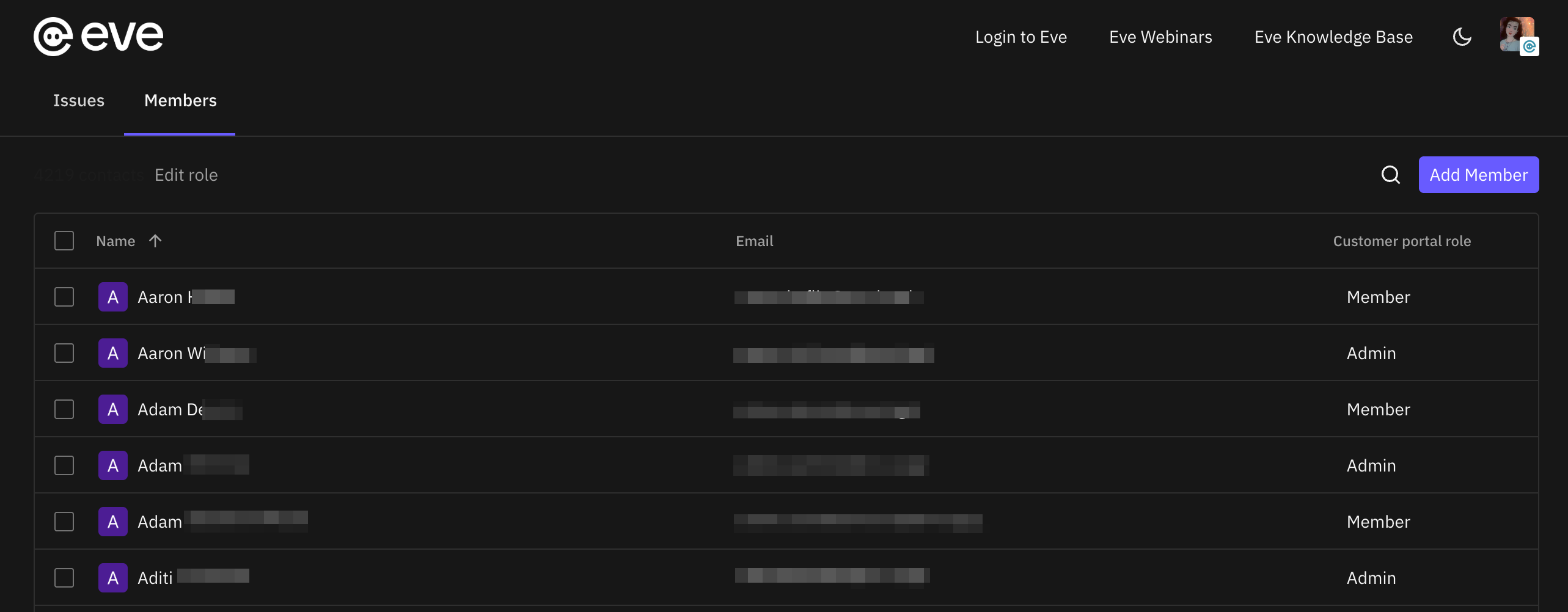
Open the Members tab.
Select the option to invite a new member.
Enter your colleague's work email address.
Choose their role, Member or Admin.
Send the invitation.
Your colleague can then go to portal.eve.legal and sign in with a one-time code sent to their email.
Invitations don't always go out automatically on every setup. If your colleague doesn't get an email, send them the link to portal.eve.legal directly and ask them to sign in with their work email.
How to change someone's role
Open the Members tab.
Find the person in the list.
Change their role to Member or Admin.
The change takes effect the next time they open the portal.
Don't see the Members tab?
You're probably a Member. Ask an existing Admin at your firm to make the change. If your firm doesn't have an Admin yet, contact Eve support or your Customer Success Manager and they'll set one up.