Unable to Tell if Task Failed or Completed in Eve
Last updated: March 9, 2026
Overview
This article resolves confusion when you can't distinguish whether a task in Eve has failed or completed successfully. This commonly occurs when viewing notifications in the notification panel or when toast notifications appear, and you're unsure what the status indicators mean or where to find failure details. Understanding task status is critical for knowing which tasks need your attention and which are ready for review.
Before You Start — Diagnosis
Confirm the following before attempting any fixes:
You have opened the notification panel by clicking the bell icon in the header
You can see notifications listed in the panel or have received a toast notification
You are looking at a notification that shows a status indicator (icon) next to the task name
Fixes
Possible Cause: Not Recognizing the Status Icons
Cause: Each task status has a specific icon, and without knowing what these icons represent, you can't tell whether a task succeeded or failed.
Steps:
Look at the icon displayed next to each notification
Identify the status using these indicators:
- Green checkmark — Task completed successfully

- Red alert icon — Task failed (includes a brief message explaining why)
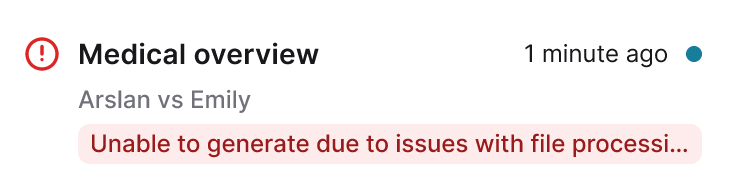
- Loading spinner — Task is still in progress (notification appears grayed out)

Review the text next to the icon, which also states the status
Expected Outcome: You can immediately distinguish completed tasks (green checkmark) from failed tasks (red alert icon) and in-progress tasks (loading spinner).
Possible Cause: Not Knowing Where to Find Failure Details
Cause: Failed tasks show a red alert icon in the notification panel, but the detailed explanation of why the task failed requires clicking through to view the full context.
Steps:
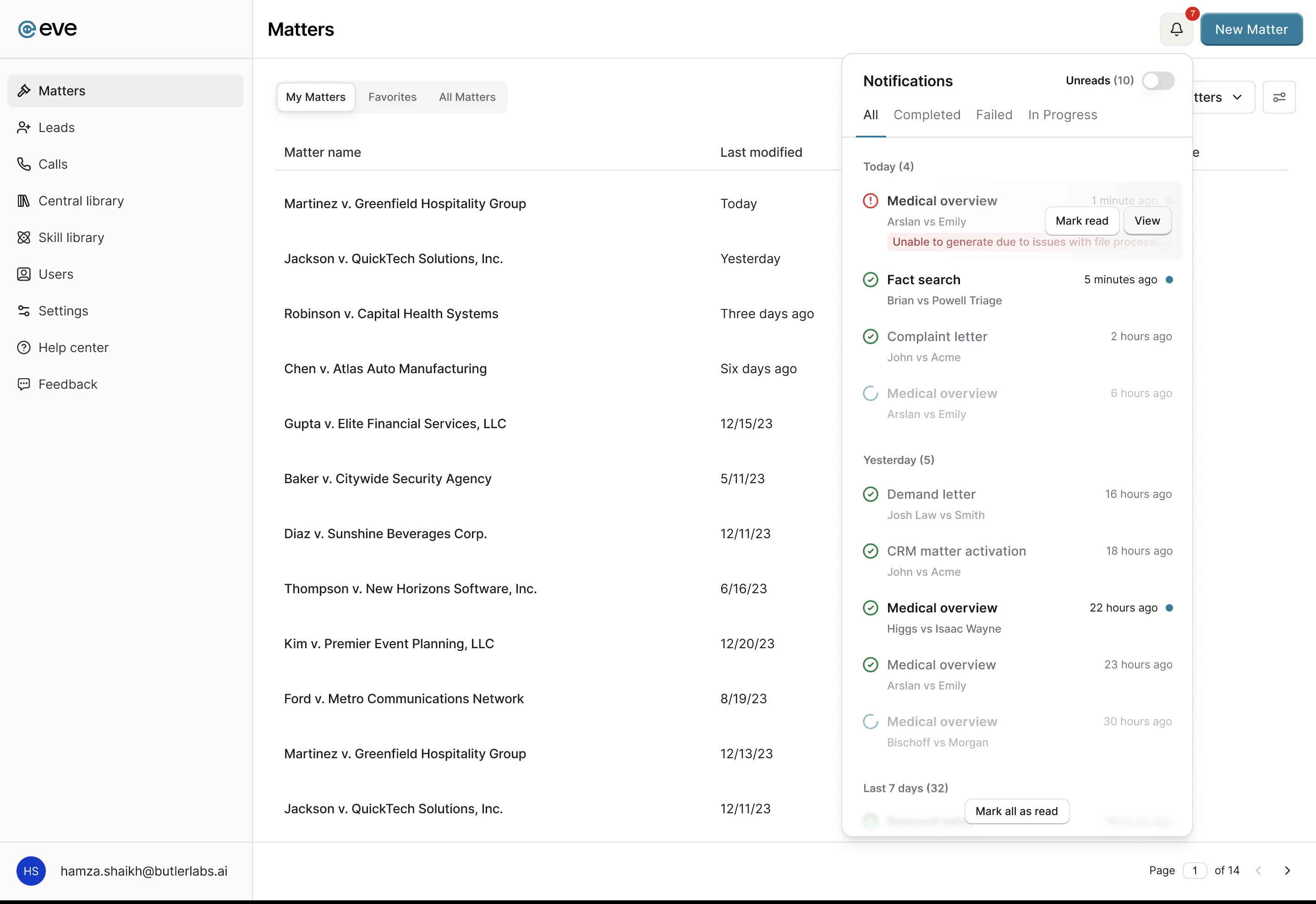
Open the notification panel by clicking the bell icon in the header
Locate any notification with a red alert icon — this indicates a failed task
Hover over the failed task notification
Click "View" to navigate directly to the failure details within the matter
Review the failure explanation displayed on the task page
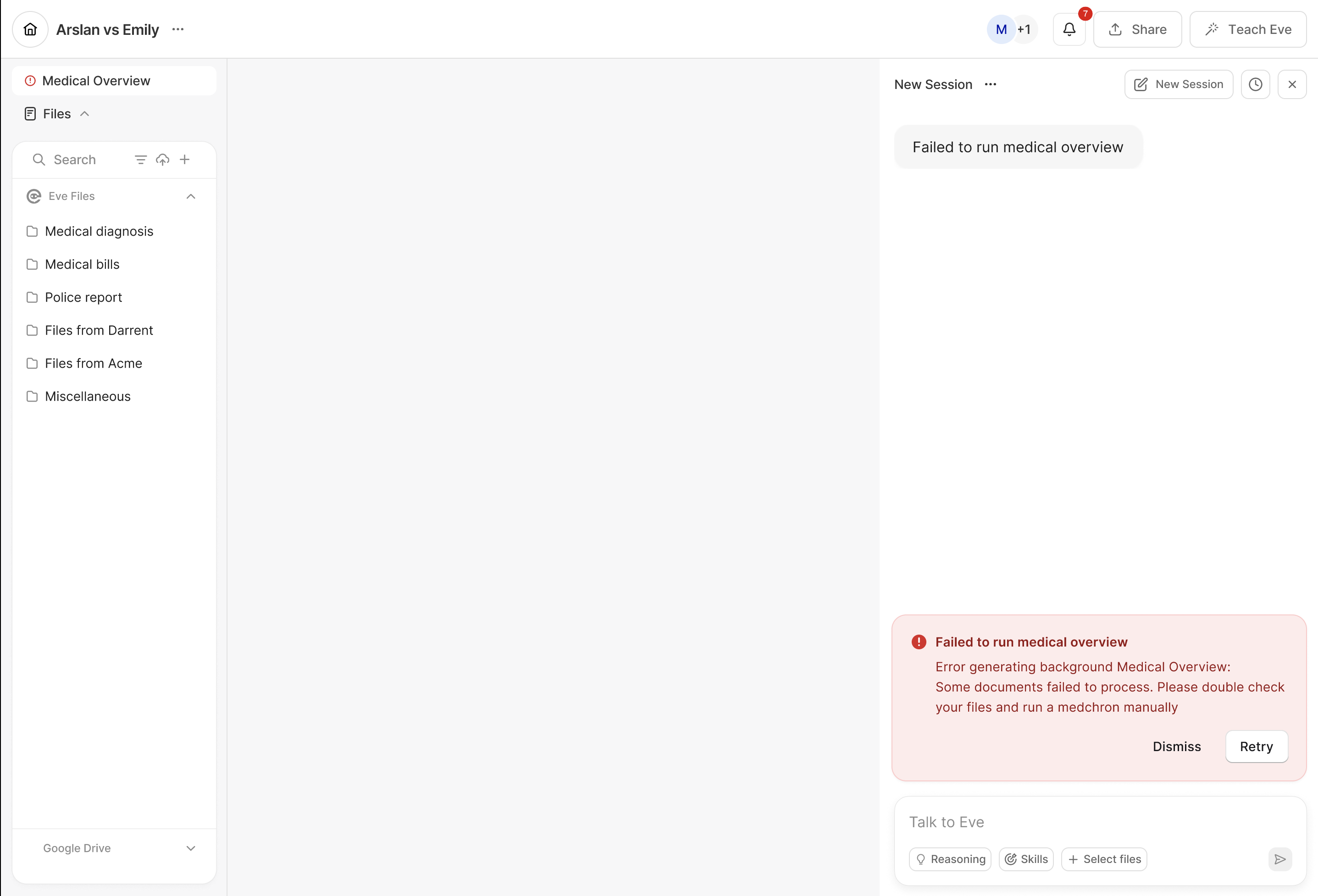
Expected Outcome: You see a detailed explanation of why the task failed and can take corrective action based on the specific failure reason.
Possible Cause: Confusion Between Toast and Panel Status Displays
Cause: Toast notifications appear temporarily below the notification bell when a task completes or fails, and you may not have enough time to read the status before the toast dismisses after 6 seconds.
Steps:
When a toast notification appears below the bell icon, look for the status text and icon
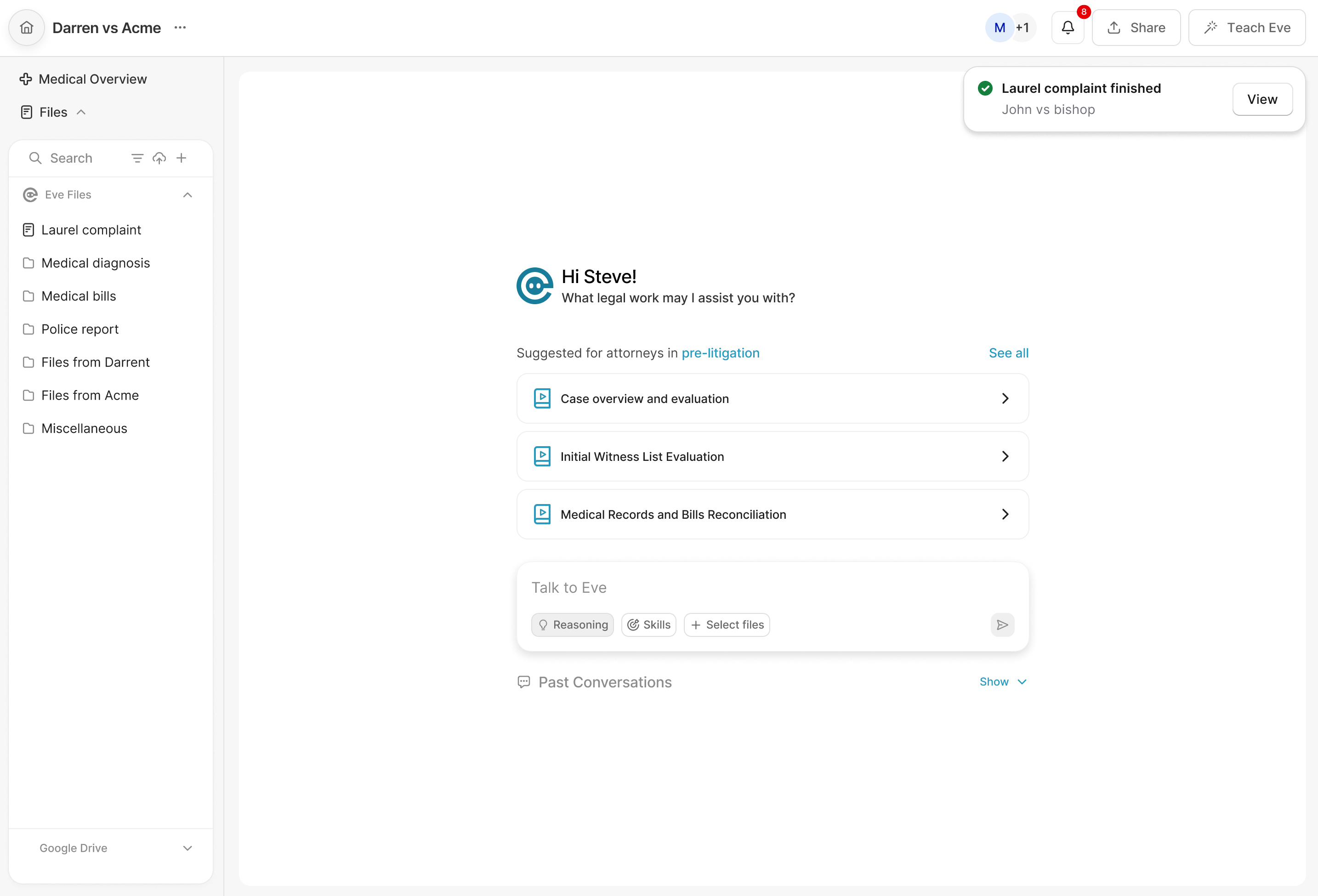
If the toast dismisses before you can review it, click the notification bell in the header
Open the notification panel to see the persistent notification with full status details
Review the status icon and text in the panel — completed tasks show a green checkmark, failed tasks show a red alert icon
Click "View" on any notification to see the complete task details
Expected Outcome: Even if you miss the toast notification, you can always find the task status in the notification panel, where all notifications persist with clear status indicators.
Possible Cause: Not Understanding What "In Progress" Means
Cause: Notifications with a loading spinner icon appear grayed out in the panel, and there's no action you can take until the task finishes or fails.
Steps:
Open the notification panel and locate any notification with a loading spinner icon

Recognize that grayed-out notifications with a spinner mean the task is still running
Wait for the task to complete or fail — the notification will update automatically
Once the task finishes, the spinner will change to either a green checkmark (completed) or red alert icon (failed)
At that point, click "View" to review the completed or failed task
Expected Outcome: You understand that in-progress tasks cannot be viewed yet, and you know to wait for the status icon to change to a checkmark or alert icon before taking action.