How to Create an Invoice for a Matter in Eve
Last updated: October 22, 2026
Overview
This article shows you how to generate and export a PDF invoice for an individual matter directly from the Matter view in Eve. This feature makes it easy for your firm to pass along Eve's per-matter fee to your clients in a clear and auditable way. You'll learn how to generate an invoice, confirm the details before export, and re-export the same invoice as many times as needed.
Keep in mind: Not all jurisdictions allow firms to pass Eve's cost to their clients. Be sure to check your local laws and regulations for costs passed to your client.
Prerequisites
Your firm must have invoice generation enabled in your Eve contract. Contact your Customer Success Manager if you're unsure whether this feature is available on your plan.
The matter name must be finalized before generating an invoice. Once an invoice is generated, the matter name can no longer be changed and the matter can no longer be deleted to ensure billing accuracy and maintain a reliable audit history.
Step-by-Step Instructions
Navigate to the Matter. From the Matters dashboard, locate and open the matter for which you want to generate an invoice. You should see the full matter details view.
Open the Options Menu. Select the options menu (typically a three-dot icon) within the Matter view. From the dropdown, select Generate Invoice.
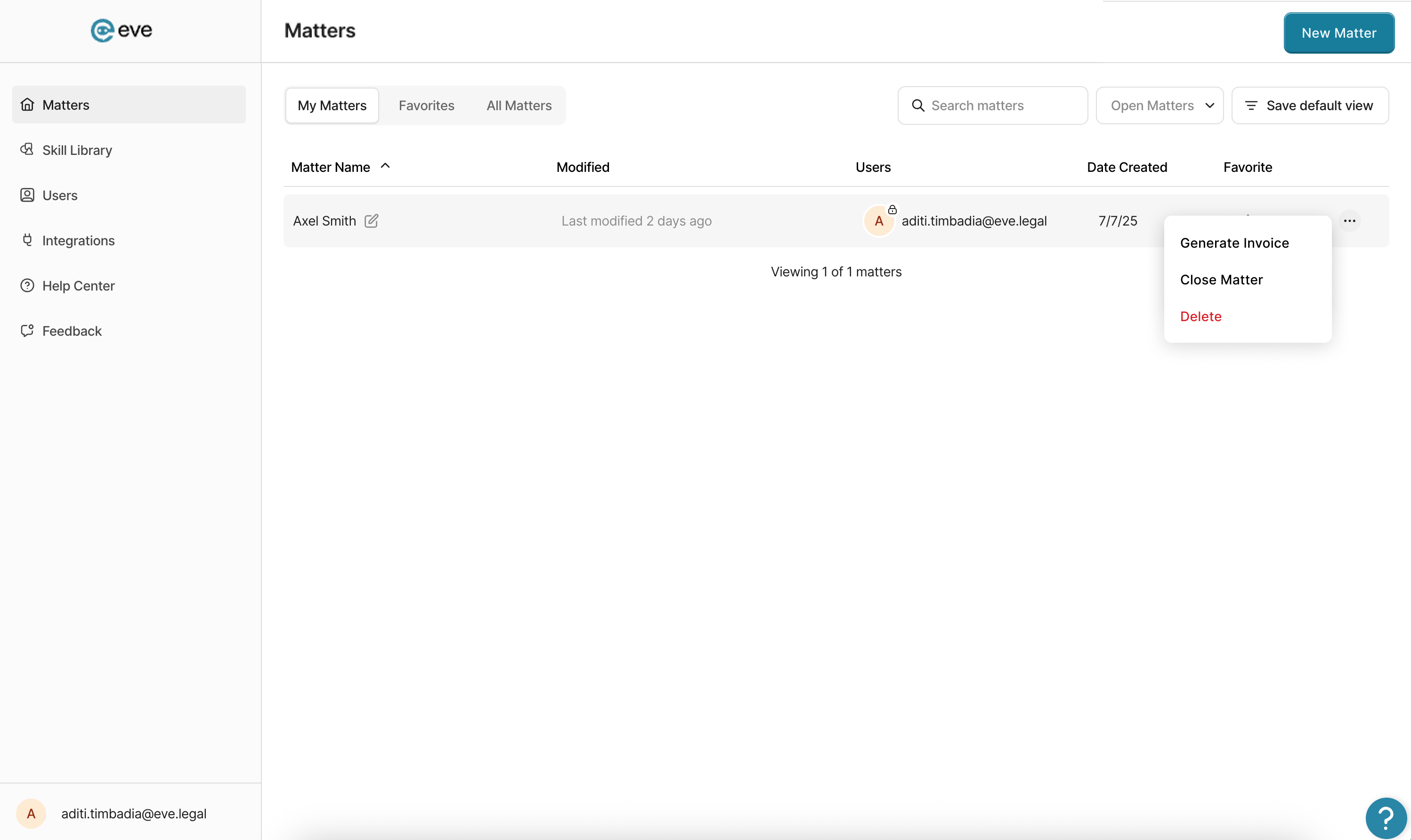
Review the Confirmation Message. A confirmation dialog will appear showing the invoice details before generation. This includes the matter name, unique invoice ID, billing amount (calculated from your contract details with Eve), and invoice date. Review these details carefully, as the matter will be locked after invoice generation.
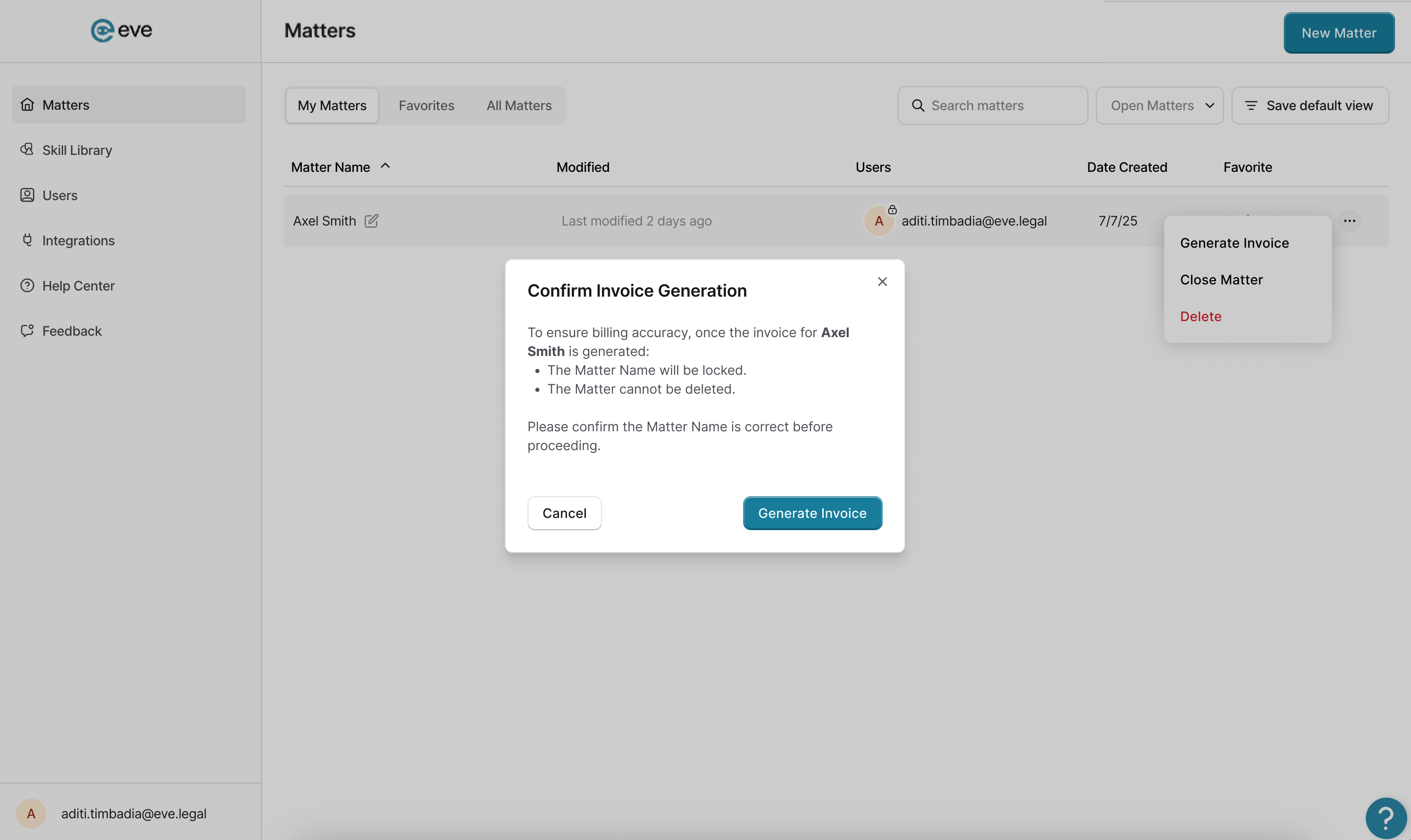
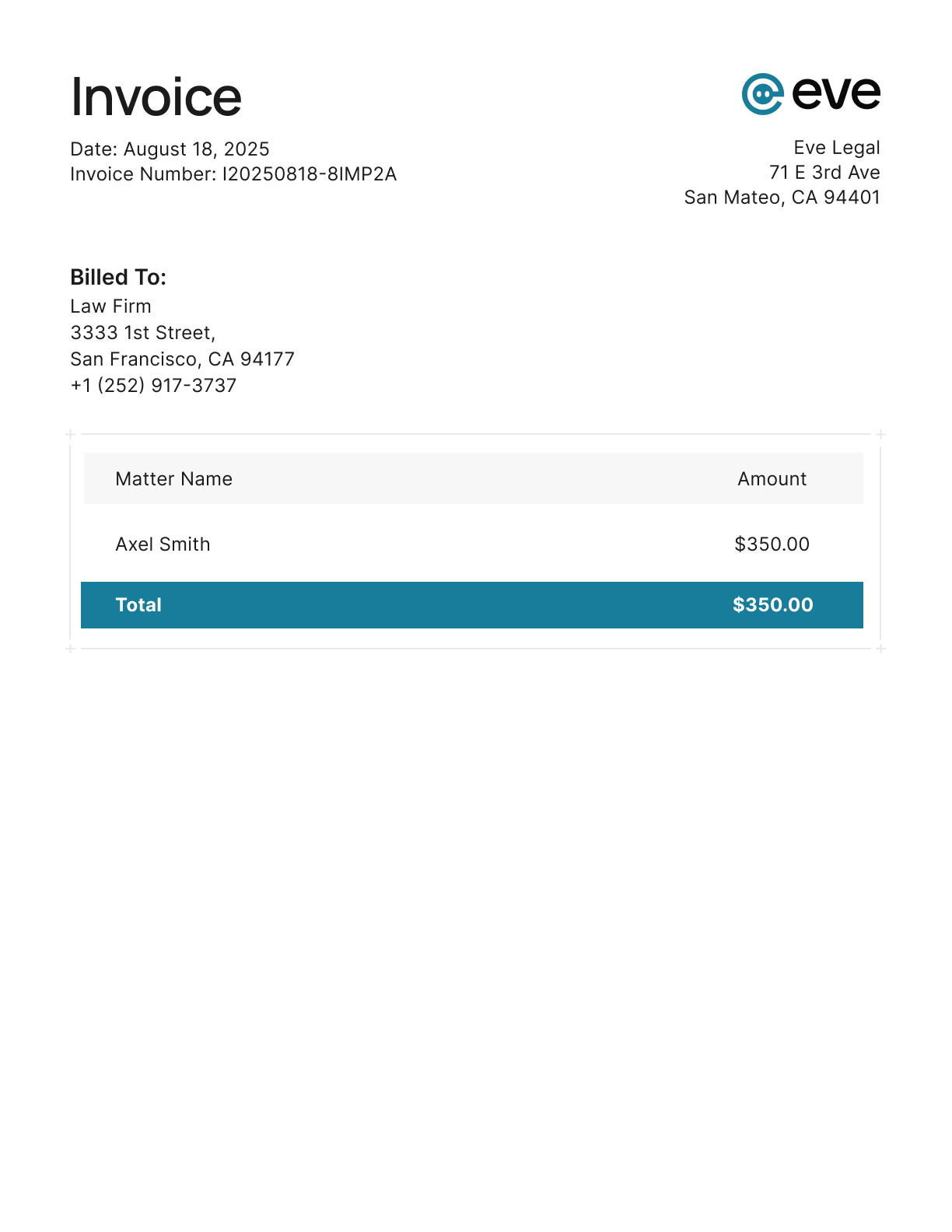
Confirm and Generate. Click the confirmation button to generate the invoice. The PDF is automatically generated and downloaded to your device. The downloaded invoice is ready to share with clients or upload into your firm's document management system.
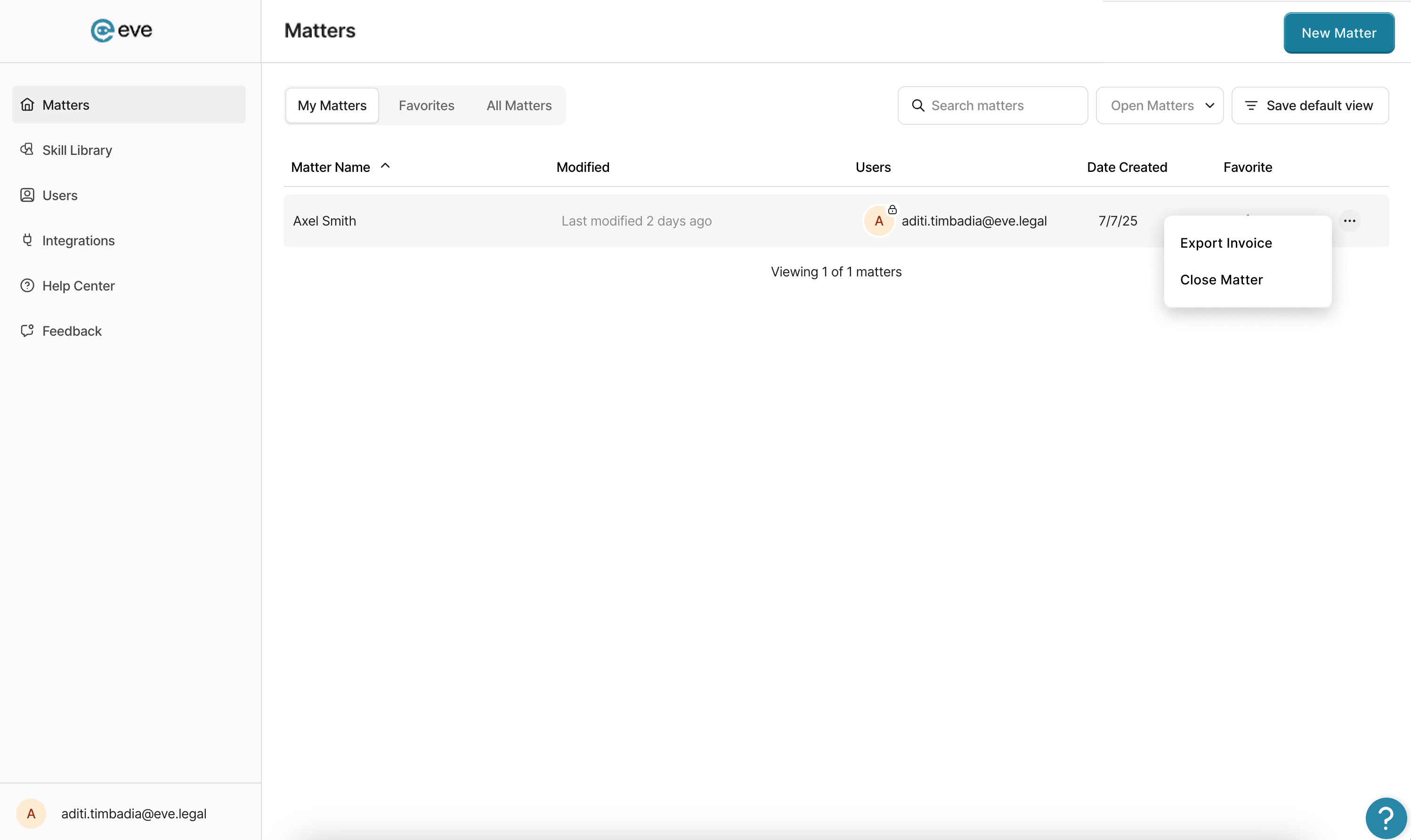
Re-Export the Invoice (Optional). If you need to export the same invoice again, return to the Matter view and select Export Invoice from the options menu. You can re-export the same invoice as many times as needed without generating a new invoice ID or date.
When complete, you should have a PDF invoice file downloaded to your device containing the matter name, unique invoice ID, billing amount, and invoice date. The invoice date reflects the date of export, not the matter creation date. Invoice amounts are controlled by your contract with Eve and cannot be edited by the user.