How to Add and Manage Exhibits in Eve
Last updated: August 4, 2026
Overview
This article walks you through adding exhibits to drafts, organizing them, and exporting your work with exhibits included. Exhibits let you attach supporting evidence like medical records, police reports, images, and PDFs directly to a drafted document. You can add exhibits when creating a new draft or add them to an existing draft later.
Prerequisites
You must have access to a Drafting Agent to create drafts with exhibits
Exhibit files must be uploaded or available in your matter
Combined total size across all exhibits must be no more than 10,000 pages
Step-by-Step Instructions
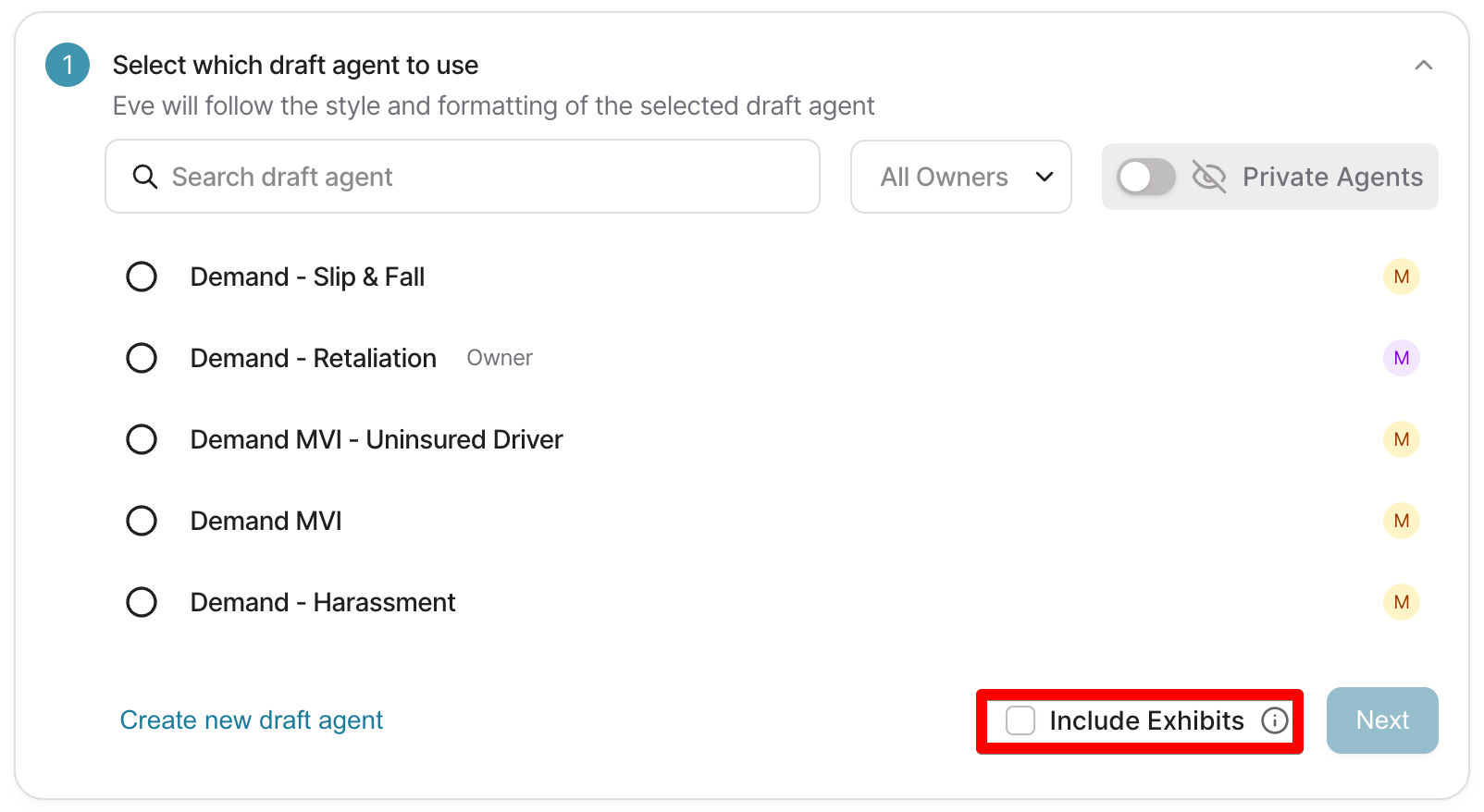
Add Exhibits When Creating a New Draft — Start a new draft from a drafting agent. Select the option to "Include Exhibits". Eve will automatically select the client files she finds most useful for an exhibit. You should see the draft created with an Exhibits section and your selected files attached.
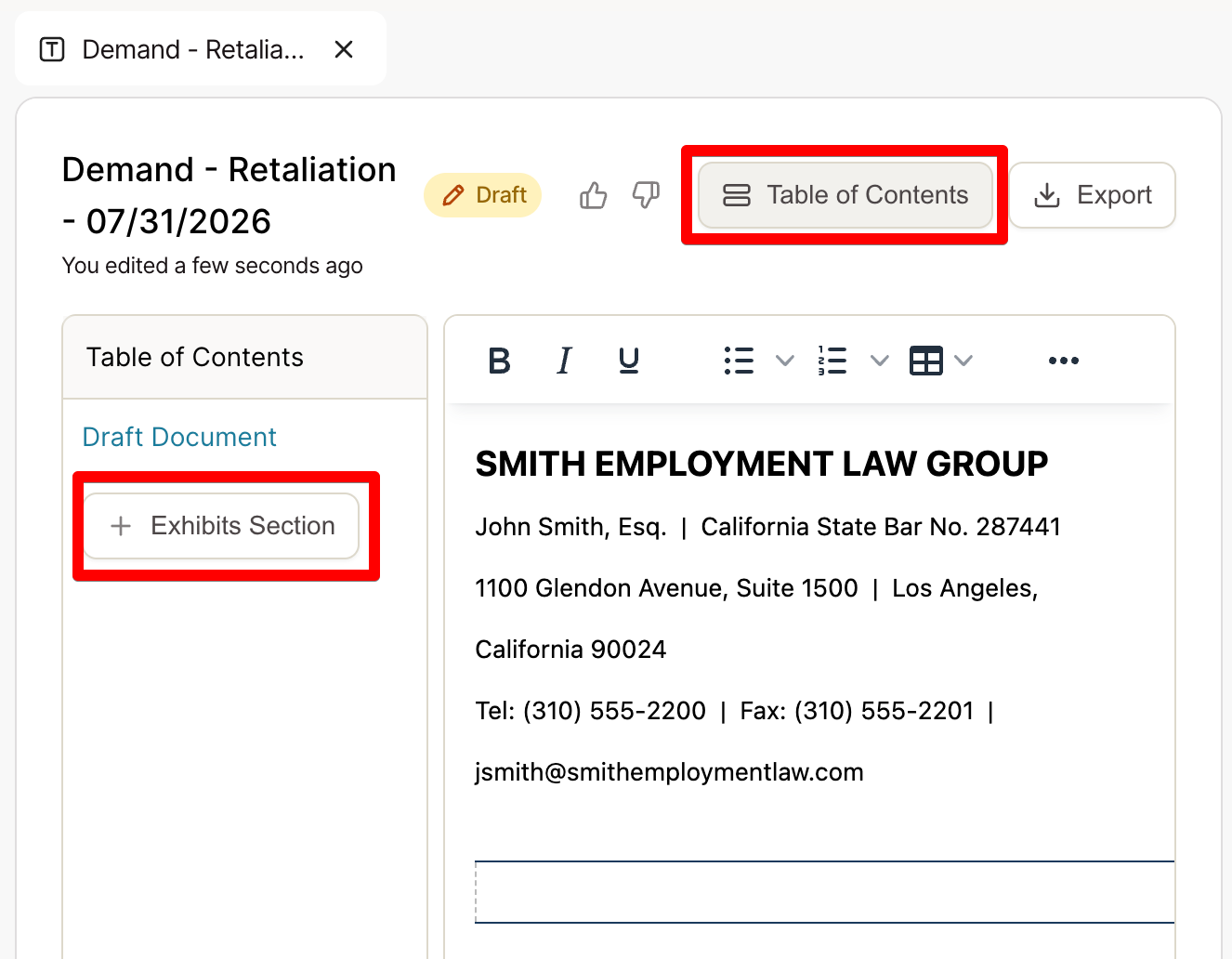
Add Exhibits to an Existing Draft — Open an existing draft that does not yet include exhibits. Open the "Table of Contents" option. Select the option to add an Exhibits section. Upload the files you want to include. You should see the Exhibits section appear in the Table of Contents with your uploaded files listed.
Reorder Exhibits — In the Table of Contents, drag and drop exhibits to change their order. This allows you to match your firm's preferred structure. The exhibit order in the Table of Contents will reflect the order in your exported packet.
Edit Exhibit Details — Select an exhibit to edit its details. You can update the title, source, and page ranges. Eve supports multiple page ranges per exhibit document. Save your changes and the updated details will appear in the exhibit listing.
Delete an Exhibit — Select the trash icon next to the exhibit you want to remove. Confirm the deletion. The exhibit will be removed from the draft and will not appear in future exports.
Export Your Draft with Exhibits — Choose your export format based on your needs. You can export the demand letter only (DOCX format), exhibits only (PDF format), or a combined export with both the draft and exhibits together (PDF format). The combined PDF export is typically the most useful because it packages the draft and exhibits together in one file.