How to Set Up Voice AI Signing in Eve
Last updated: June 26, 2026
Overview
This article shows a firm admin how to turn on Voice AI Signing in Eve by connecting DocuSign and configuring signing rules, so Jenny can send a retainer and complete signing during a live intake call. Voice AI Signing is part of Eve Intake. For more information about signing or Intake,
Prerequisites
Your firm is on Voice AI / Eve Intake, and you are signed in as a firm admin.
You have a paid DocuSign account (Standard or Business Pro — a free trial will not work) with at least one retainer template uploaded. In the template, set the recipient to Role only (Role = "client") with no pre-filled name or email, and make sure every field's color matches the client recipient color, or signing will fail on the live call.
(Optional) For SMS retainer delivery, add DocuSign's Multi-channel delivery add-on. Email delivery works without any extra setup.
Step-by-Step Instructions
Connect DocuSign in Eve — Go to Settings > Integrations > E-signature and click Connect next to DocuSign, then complete the OAuth login as your DocuSign account admin. Once connected, Eve pulls in your DocuSign templates and unlocks the Signing Rules card on the Intake tab.
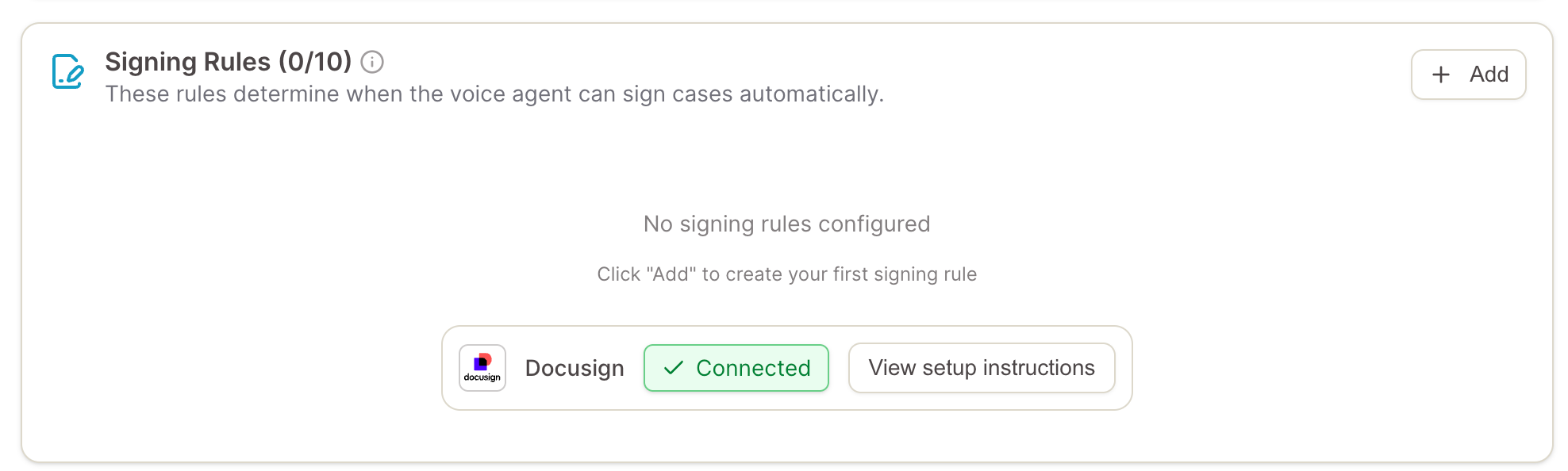
Open the Signing Rules card — Go to Settings > Intake and find Signing Rules. The Add button stays disabled until DocuSign is connected, so finish step 1 first. A "View setup instructions" button here shows the DocuSign template steps if you need them.
Add a signing rule from a preset — Click Add and choose a starting preset: Personal Injury, Labor & Employment, or Custom. Each preset pre-fills qualification criteria and a full signing call flow that you then tailor to your firm. You can create up to 10 rules and drag to reorder them; rules are checked top to bottom and the first match wins (single signer only).
Set the rule's three fields — Configure each rule. Qualification Criteria defines when Jenny offers signing and can reference the call transcript, case type, lead score (0–100), and time of day; exclusions live here too, since the presets include a "Do NOT match if..." block (caller acting on someone else's behalf, caller already has an attorney, multi-signer needed) and exclude leads scoring under 60 by default. Signing Guidance holds instructions for the signing agent, such as objection handling and post-signing steps, plus an optional human-transfer number under the "# Configuration > Transfer number" line. Retainer Template is the DocuSign template pulled from your connected account. The rule name is editable at the top of each rule.
Configure call transfer rules — On the same settings page, set up transfer rules for the cases you want humans to handle, such as existing clients, catastrophic or death cases, after-hours overflow, and a generic "caller requests a human" fallback. Transfer rules are evaluated before signing rules, so any call that matches a transfer rule routes to a human and never reaches signing.
Make a test call — Place a live test call to your voice agent number and confirm that the lead, transcript, and (when a signing rule matches) the retainer flow all appear correctly before going live.