Sync Failed or Missing Documents from DMS in Eve
Last updated: October 22, 2026
Overview
Documents from a connected document management system are not appearing in Eve, or they appear marked Sync Failed. These issues typically occur when folders are deleted or moved in your DMS, when Eve's automatic nightly sync encounters errors, or when your DMS provider applies rate limiting.
Eve syncs connected folders nightly. Most failures come down to the folder moving on the DMS side, the nightly cycle not having run yet, or the DMS provider throttling access.
Check First
Whether the affected documents are marked Sync Failed in Eve.
Whether the source folder still exists in its original location in the DMS.
Whether at least one nightly sync has run since the documents were added.
Whether other documents from the same folder are syncing normally.
Whether the DMS itself is degraded or down.
The Folder Was Moved or Deleted in the DMS
Why it happens: Eve keeps an eye on a specific folder for changes and updates. Move or delete it on the DMS side, and Eve can no longer reach the source location, so the files it already has stay accessible but get marked Sync Failed.
Go to the integrations page in Eve.
Find the DMS integration card.
Click the gear icon to see which folders Eve currently has access to.
Select the new location if the folder moved, or a different active folder if it was deleted.
Confirm the selection.
What you should see: Syncing of the new folder starts on the next nightly cycle. Documents already marked Sync Failed stay accessible in Eve.
The Nightly Sync Has Not Run Yet
Why it happens: Selected folders sync nightly. Documents added to the DMS today may simply not have been picked up yet.
Open the matter where the documents should appear.
Click Resync to trigger a manual sync.
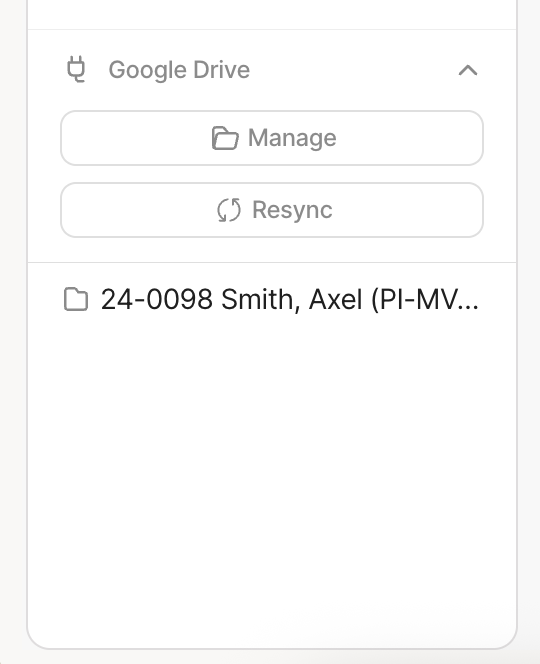
Wait for the sync to finish.
What you should see. The documents appear as soon as the manual sync completes. If they still do not, confirm they sit in a folder Eve has access to.
The Integration Is Disabled or Paused
Why it happens: A paused or disabled integration stops syncing entirely, which looks identical to a failure from inside a matter.
Go to the integrations page.
Find the DMS integration card and check its status.
Re-enable it if disabled, or resume it if paused.
What you should see: The integration shows as active and syncing resumes on the next nightly cycle. A manual Resync from inside a matter picks it up immediately.
See 📄 How to Disable or Pause a CMS Integration in Eve.
The DMS Provider Is Rate Limiting
Why it happens. Rate limits and performance thresholds are set by the DMS provider, not by Eve. When one is hit, Eve cannot reach the documents until it resets.
Check the provider's status page, or ask their support whether rate limiting is in effect.
If it is, wait for the reset, typically within 24 hours.
If performance problems persist, contact your Customer Success Manager to review the sync configuration.
What you should see. Once the limit resets, the next automatic sync completes and the documents appear.
The DMS Is Not Supported
Why it happens: Documents only sync from a supported system, or from a custom integration built for the firm.
Supported systems: OneDrive, Google Drive, Dropbox, SharePoint, NetDocs, Clio Documents, Growpath, CasePacer, SmartAdvocate, Litify Docrio.
If yours is not on that list, contact your Customer Success Manager for more information on other options for data sync.