Plugins: Shared or Individual Sign-In
Last updated: November 11, 2026
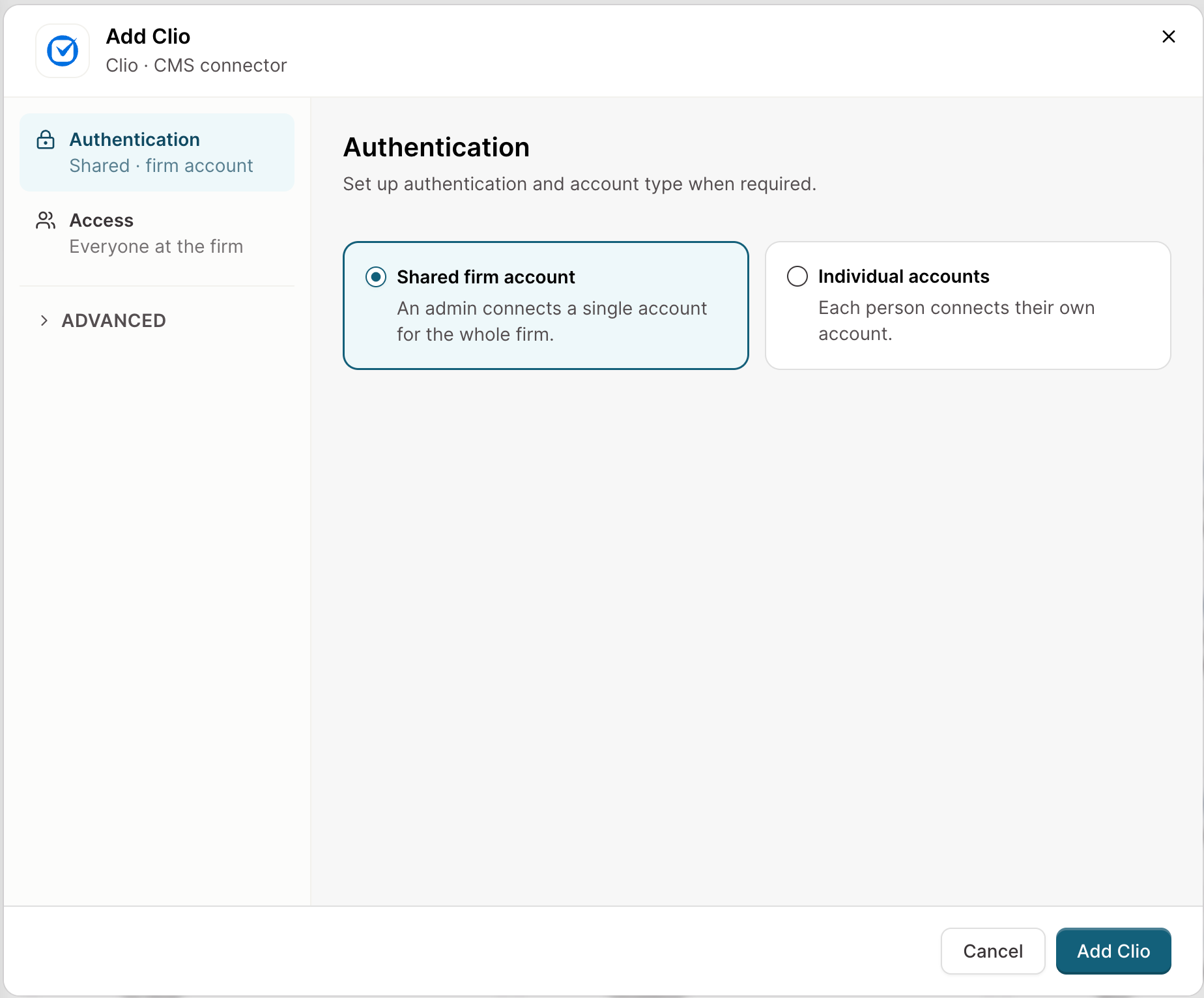
When you add a plugin, Eve may ask how it should sign in to your other system. The choice decides who Eve acts as, and what Eve is allowed to do once it gets there. This article helps a firm admin pick.
The short version
If your system limits who can edit certain fields, choose individual accounts. If you want one steady, auditable identity doing high-volume, low-risk updates, choose a shared firm account.
What each option means
Shared firm account | Individual accounts | |
|---|---|---|
How it connects | An admin connects one system admin account for the whole firm. | The admin connects the plugin, then each person connects their own account. |
Who Eve acts as | That one admin account, every time. | The person who made the request. |
What Eve can do | Everything that admin account can do, for every plugin user. | Only what that person is allowed to do in the other system. |
How it shows in the other system | Every change shows up as the shared account. | Each change shows up under the person's own name. |
Setup for your team | Nothing more. You connect once and you're done. | Each person sees a Connect button in chat the first time they use the plugin, plus a banner on the home page. |
In an auto agent | Every run acts as the shared account. | Each run acts as a matter team member, set by Runs as on the agent's trigger. |
Shared sign-in gives everyone who uses the plugin the same access as the admin account it runs on. That includes access your firm's own role permissions would normally hold back.
Which plugins offer a choice
Any plugin can use either option. You choose when you connect the plugin.
How to decide
Choose individual accounts when:
Your system limits who can edit certain fields. For example, some of your team can't change a statute of limitations date. With individual sign-in, Eve respects that. With shared sign-in, it doesn't.
You want each change tied to the person who asked for it.
You want Eve's reach to match each person's own access, and nothing wider.
Choose a shared firm account when:
The updates are high-volume and low-risk, like routine status or field changes.
You want one auditable identity behind every change.
You'd rather not ask every person to connect their own account.
What this means for auto agents
Auto agents work on either option.
On a shared firm account, every run acts as the one connected account, and nothing extra is set up.
On individual accounts, the agent's trigger gains two fields: Runs as and a backup user. Runs as is a matter team role, and each run starts one session for every person on the matter who holds that role, using their own connection and their own permissions. If nobody on the matter holds the role, the run uses the backup user's connection. The backup user is a firm admin. Eve notifies each person about the runs made in their name.
These fields appear only on triggered agents that use a plugin set to individual accounts.
Where to find it
Open Settings, then Plugins. Select the plugin, then look for the authentication section. See 📄 How to Add and Connect a Plugin for the full setup walk-through.
Common questions
Does either option change whether Eve asks before writing?
By default, no. With either option, Eve proposes each change with the value, the destination, and the evidence it used, and a person confirms before anything lands. If you tell Eve to push changes automatically, using the plugin's firm instructions, Eve will. Until you do, Eve asks and confirms.
Does Eve respect our field-level permissions?
Only with individual accounts. Shared sign-in bypasses them, because every plugin user acts with the connected admin account's access.
Can a shared firm account reuse the account our integration already uses?
On Litify, yes. Litify firms create a dedicated Eve integration user in Salesforce, and a firm that already has one from the Eve data ingest can point the plugin at it. The Salesforce admin confirms that user's permission set has API Enabled plus read and write on the Litify objects Eve needs, since the ingest user may be read-only.
For other systems, the plugin is authenticated on its own. Connecting it does not disconnect or replace an existing integration.
A plugin is stuck on Connect. Is that the sign-in choice?
Usually not. See 📄 Plugins Won't Connect? for the common causes.
Still stuck? Chat with us in-app using the help icon, or email support.