How to Use Auditor Views in Eve
Last updated: March 10, 2026
Overview
This article walks you through accessing and using the two main views in Auditor to review case findings across your portfolio or within individual matters. Auditor provides a cross-case dashboard for portfolio-level analysis and a matter-level page for deep-diving into specific case findings with evidence citations. Use the cross-case dashboard when you need to prioritize across multiple matters, and use the matter-level view when you need to investigate findings for a specific case.
Prerequisites
Auditor must be enabled for your firm
Matters must have documents and case information loaded in Eve
Auditor must have completed at least one nightly run to generate findings
Step-by-Step Instructions
Access the Cross-Case Dashboard — Navigate to the left-side navigation panel and click "Auditor". You should see a table showing all matters with finding columns that you can filter, sort, and analyze. This view is designed for portfolio-level review and prioritization across all your cases.
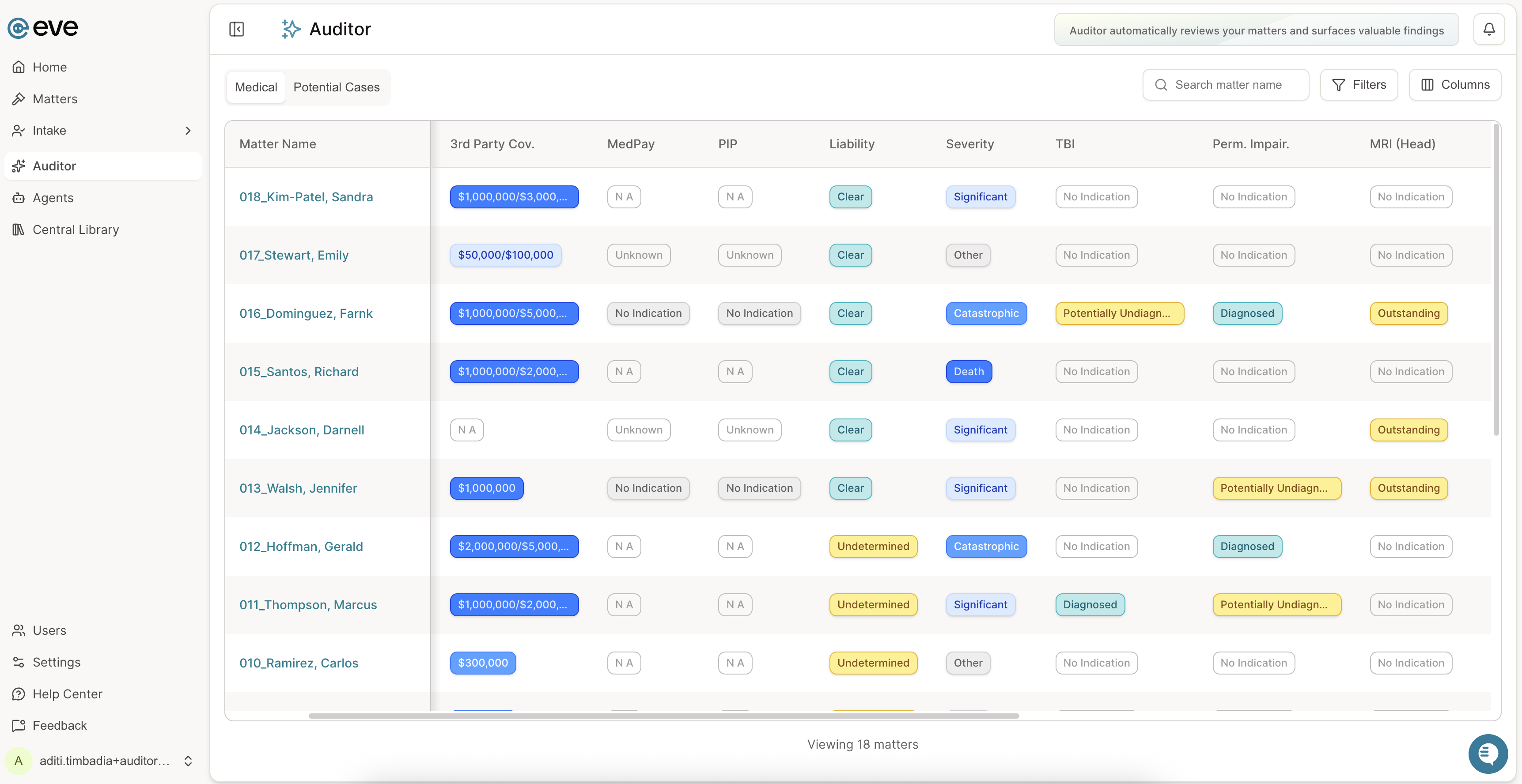
Filter and Sort Findings — Use the column headers to sort by practice area, case type, or any finding type. Click the filter icon on any column to narrow down matters by specific criteria. This allows you to quickly identify which cases need attention based on specific finding types or characteristics.
Customize Column Display — Use the column selection feature to show or hide specific finding columns based on what matters most to your review. This lets you focus on the data points relevant to your current task without visual clutter from unused columns.
Save Custom Views — Once you've configured your preferred columns, filters, and sort order, save the configuration as a custom view. This allows you to quickly return to commonly used configurations without reconfiguring each time you open the dashboard.
Use 'Tell Me More' for Contextual Analysis — Click the "Tell me more" button next to any finding to open a contextual chat with Eve. The chat will be pre-loaded with that finding's context, allowing you to ask follow-up questions or explore the finding in more depth without leaving the dashboard.
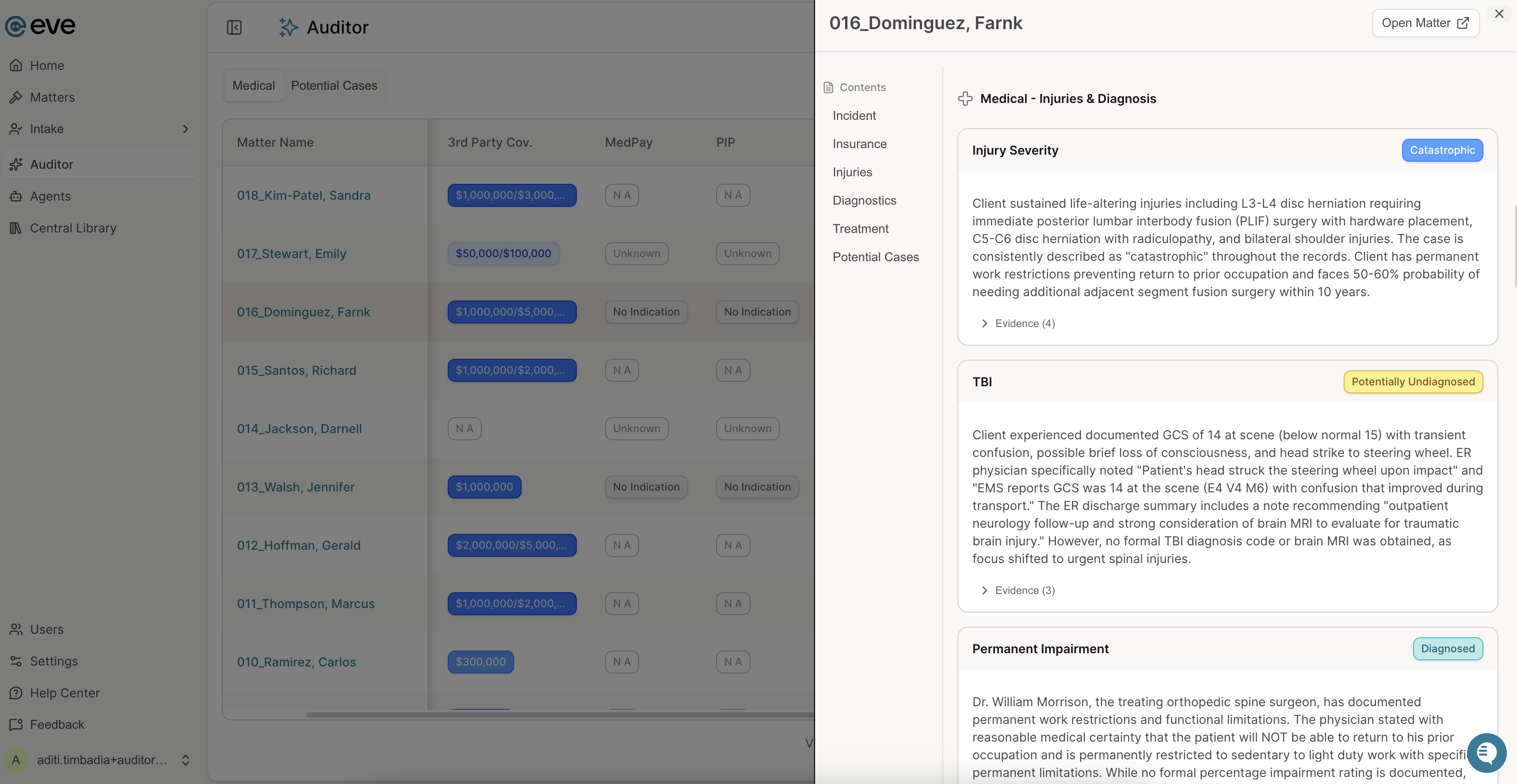
Access the Matter-Level Auditor Page — Navigate to any individual matter and click the "Auditor" tab. You should see a full breakdown of all findings for that specific case, including evidence citations linked to source documents. Use this view when you need to investigate a specific matter's findings in detail or review the evidence supporting each finding.
Review Evidence Citations — Within the matter-level Auditor page, click on source document links to view the specific evidence supporting each finding. This allows you to verify findings against the original documents and understand the context behind each flagged item.